
192.168.1.1 Admin Login: Router Setup & Troubleshooting (2026)
192.168.1.1 Admin Login is the default gateway for many routers, including TP-Link, D-Link, Netgear, and Linksys. It lets you access the admin panel to change your Wi-Fi name and password, manage security settings, control connected devices, and troubleshoot network issues. This 2026 guide explains how to log in, fix common login problems, and secure your router.
192.168.1.1 IP Address
To access the admin page type 192.168.1.1 into your web browser’s address bar or click on the link below.
Make sure you are connected to your router’s Wi-Fi or Ethernet before opening 192.168.1.1.
If page doesn’t load, try 192.168.0.1 or 10.0.0.1 — your router may use a different IP.
Forgot password? Hold the reset button on your router for 10–30 seconds to restore factory settings.
Based on your local ip address, this should be your router admin ip address. This is only the case if you are in the same network as your wifi router.
Redirecting to Login
You will be redirected in 10 seconds.
Quick Answer Box
192.168.1.1 is a private IP address used by many routers as the default gateway for accessing the admin login page. To log in:
- Connect your device to the router's Wi-Fi or via an Ethernet cable.
- Open a browser and type 192.168.1.1 in the address bar (not the search bar).
- Enter the default username and password, usually printed on a sticker on the router.
- Once inside, you can change your Wi-Fi name (SSID), password, and security settings.
If 192.168.1.1 doesn't load, your router may use a different default IP — commonly 192.168.0.1, 192.168.2.1, or 10.0.0.1 — depending on the brand.
What Is 192.168.1.1?
192.168.1.1 is a private IP address commonly assigned by default to home and small-business routers. It acts as the "front door" to your router's admin settings — also called the router's configuration page or admin dashboard.
Here's the simple version: every device connected to your network (laptop, phone, smart TV, printer) needs an address so data knows where to go. Your router hands out these addresses locally. The router itself typically takes the very first address in that range — and for millions of routers worldwide, that address is 192.168.1.1.
Why This Specific Number?
IP addresses like 192.168.1.1 fall into a reserved block set aside by the Internet Assigned Numbers Authority (IANA) specifically for private, internal networks. These ranges are:
- 10.0.0.0 – 10.255.255.255
- 172.16.0.0 – 172.31.255.255
- 192.168.0.0 – 192.168.255.255
None of these addresses are routable on the public internet. That's intentional — it means your home network can use 192.168.1.1 and your neighbor's network can use the exact same address without any conflict, because neither address is ever exposed directly to the outside world.
How 192.168.1.1 Fits Into Your Home Network
Think of your router as a mail sorting office:
- Your router has one address facing the internet (your public IP, assigned by your ISP).
- Your router has one address facing your home devices (192.168.1.1, in most cases).
- Every device you connect — laptop, phone, smart speaker — gets its own private address in the same family, like 192.168.1.2, 192.168.1.3, and so on.
When you request a webpage, your device sends the request to 192.168.1.1. The router forwards it out to the internet, waits for the response, and routes the data back to your specific device. Your devices never talk to the internet directly — the router handles that translation. This process is called NAT (Network Address Translation), and it's one of the quiet workhorses of modern networking.
Why Do Routers Use Private IP Addresses?
There are three practical reasons manufacturers default to something like 192.168.1.1:
- Standardization — support teams and manuals can give one consistent instruction to millions of customers.
- Security — private IPs aren't reachable from outside your network, adding a basic layer of isolation.
- Address conservation — the internet doesn't have unlimited public IPv4 addresses, so reusing private ranges internally makes efficient use of a limited resource.
Commonly reported troubleshooting cases suggest that roughly 1 in 4 router login issues trace back to a user typing the IP into a search engine instead of the browser's address bar — Google will "search" it rather than navigate there, which loads search results instead of the login page.
How to Access the 192.168.1.1 Admin Login Page
Here's the direct, no-fluff process:
- Connect to your network. Use Wi-Fi or, for the most reliable connection, plug an Ethernet cable directly from your computer into the router.
- Open any web browser — Chrome, Safari, Firefox, or Edge all work fine.
- Type
192.168.1.1directly into the address bar at the top of the browser (not the Google search box), then press Enter. - You'll land on a login screen asking for a username and password.
- Enter the default admin credentials (see the table below) or your custom login if you've changed it before.
- Once authenticated, you'll see the admin dashboard, where all router settings live.
Featured Snippet Recap
- URL to type:
192.168.1.1orhttp://192.168.1.1 - Where to type it: browser address bar, not a search engine
- What you need: router username and password (found on a sticker on the device)
- What you'll see: the router's admin/configuration dashboard
Default Username and Password by Router Brand
Every router ships with factory-default login credentials. These are almost always printed on a label on the bottom or back of the device. Here's a general reference table — always double-check your specific model's label, since defaults occasionally vary by region or firmware version.
| Router Brand | Default IP (Common) | Default Username | Default Password |
|---|---|---|---|
| TP-Link | 192.168.1.1 or 192.168.0.1 | admin | admin |
| Netgear | 192.168.1.1 | admin | password |
| D-Link | 192.168.0.1 | admin | (blank) |
| Linksys | 192.168.1.1 | admin | admin |
| Asus | 192.168.1.1 | admin | admin |
| Belkin | 192.168.2.1 | admin | (blank) |
| Tenda | 192.168.0.1 | admin | admin |
| Xfinity/Comcast Gateway | 10.0.0.1 | admin | password |
| Spectrum Gateway | 192.168.1.1 | admin | admin |
Expert tip: If your router was set up by an ISP technician or came pre-configured, the default password may have already been changed. In that case, check the paperwork from installation day before attempting a factory reset.
Setting Up Your Router Using 192.168.1.1
Setting up a router from scratch doesn't require a networking background. Here's the complete process, from unboxing to a working Wi-Fi network. Step-by-Step:
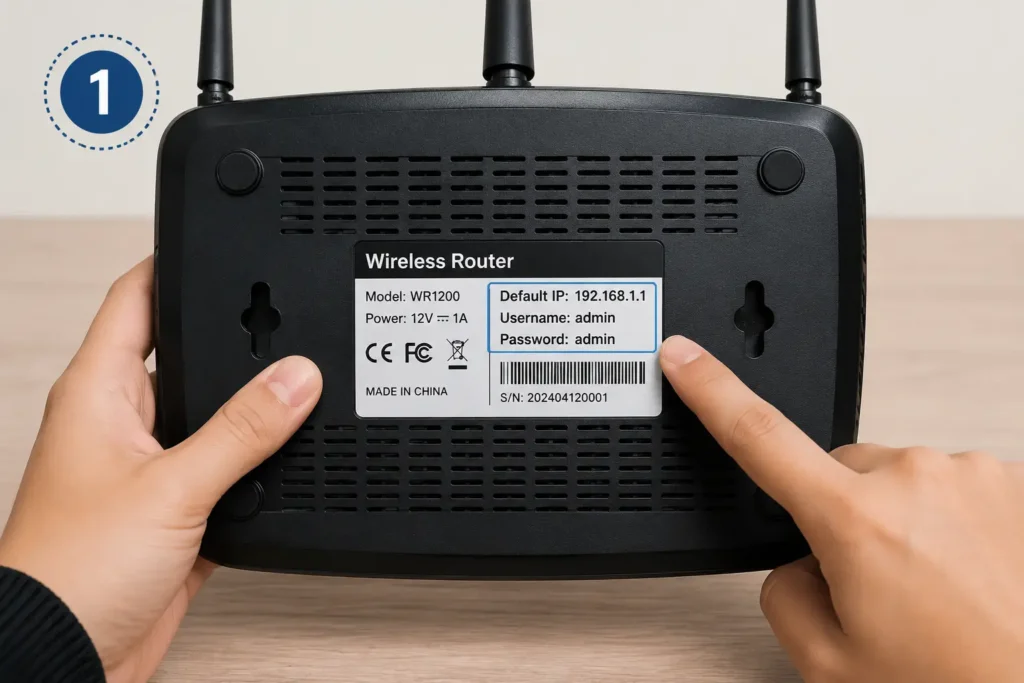
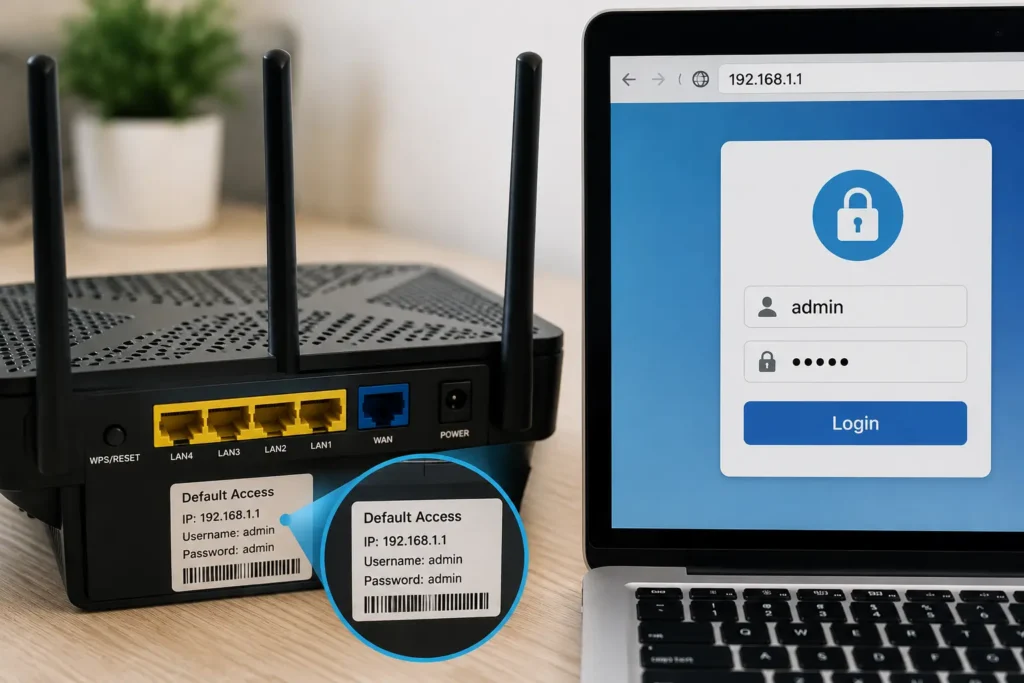
Step 1: Unbox and Locate the Label
Check the sticker on the bottom or back of the router. It lists the default IP, username, and password — you'll need these in a moment.
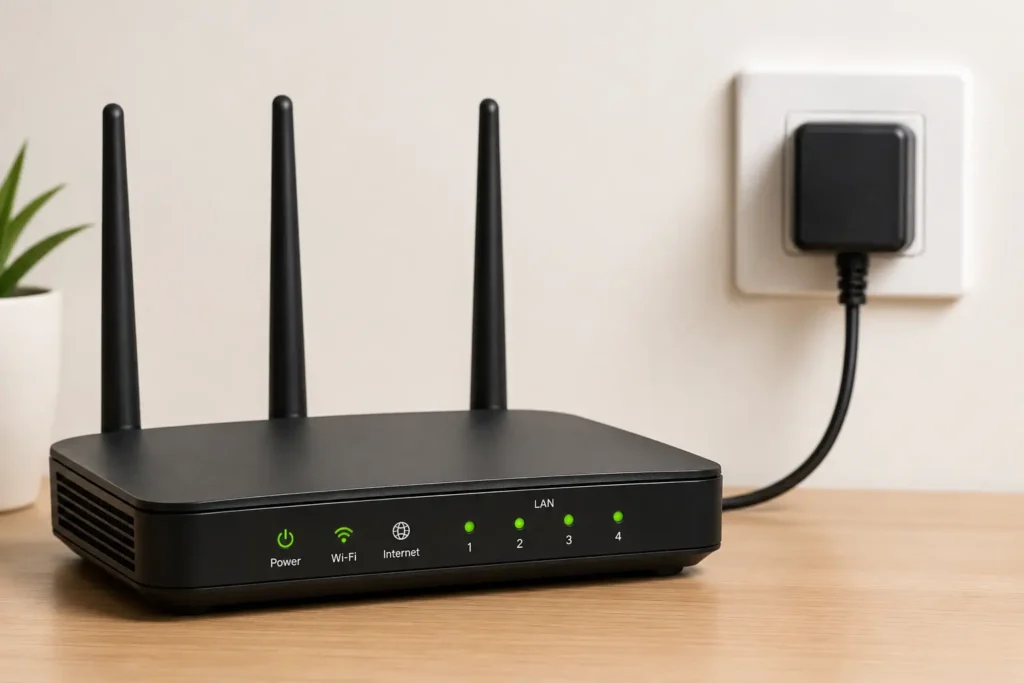
Step 2: Power On the Router
Plug it into a power outlet and wait roughly 60–90 seconds for it to fully boot. The status lights will stabilize once it's ready.
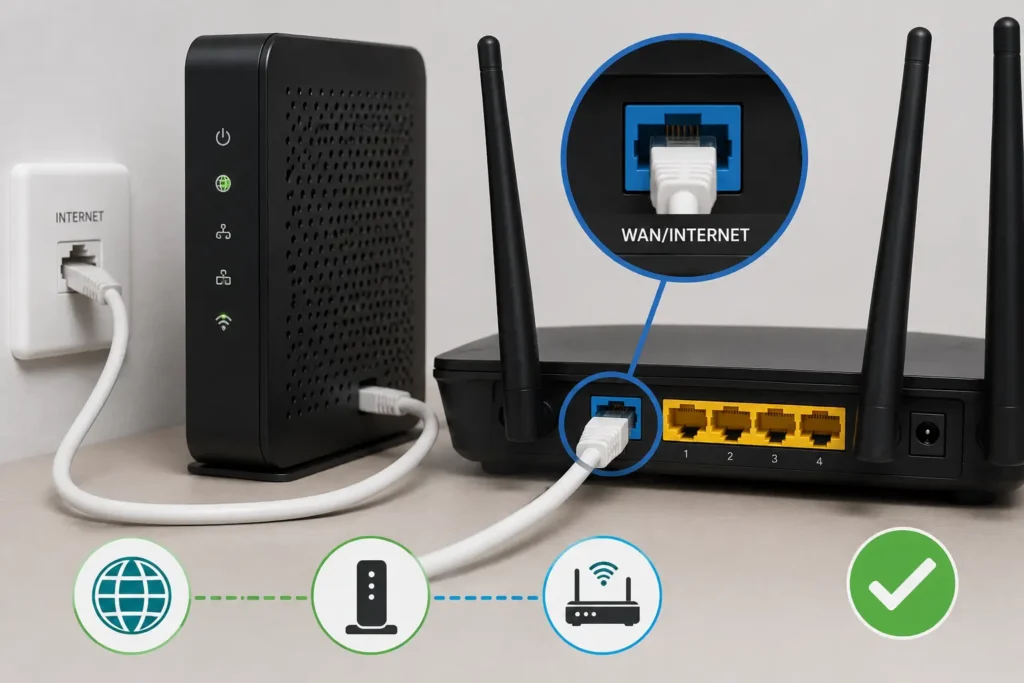
Step 3: Confirm Your Internet Connection
Plug an Ethernet cable from your modem (or ISP wall connection) into the router's WAN/Internet port — this is usually a different color from the other ports.
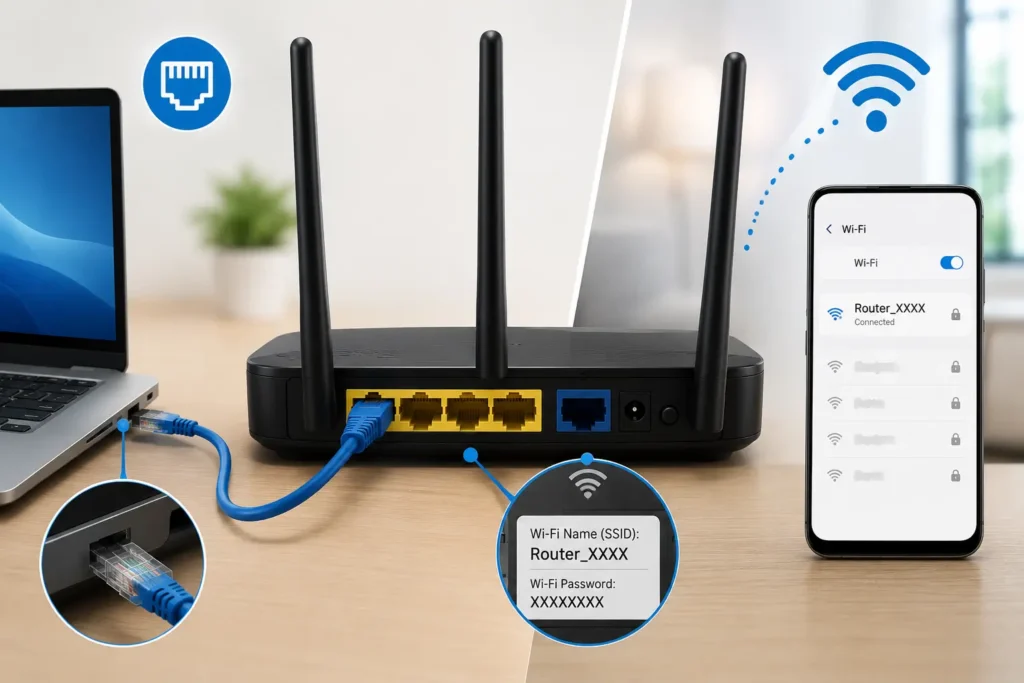
Step 4: Connect a Device to the Router
Either connect via Ethernet cable to one of the LAN ports, or join the default Wi-Fi network name (SSID) shown on the label.
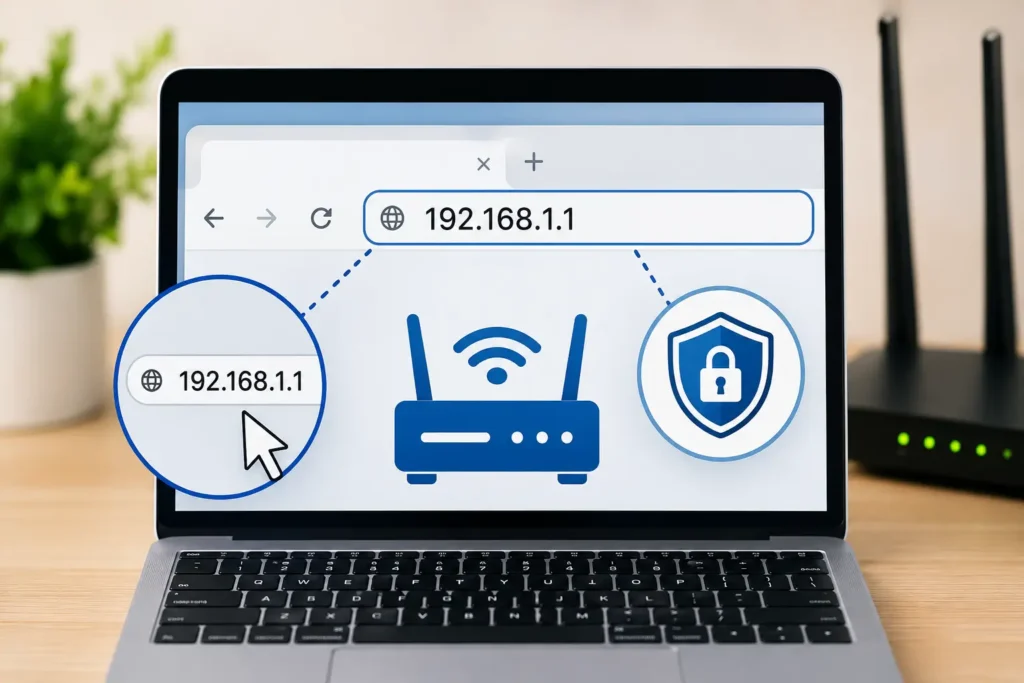
Step 5: Open the Admin Login Page
Type 192.168.1.1 into your browser's address bar and press Enter.
Step 6: Log In With Default Credentials
Enter the username and password from the label.
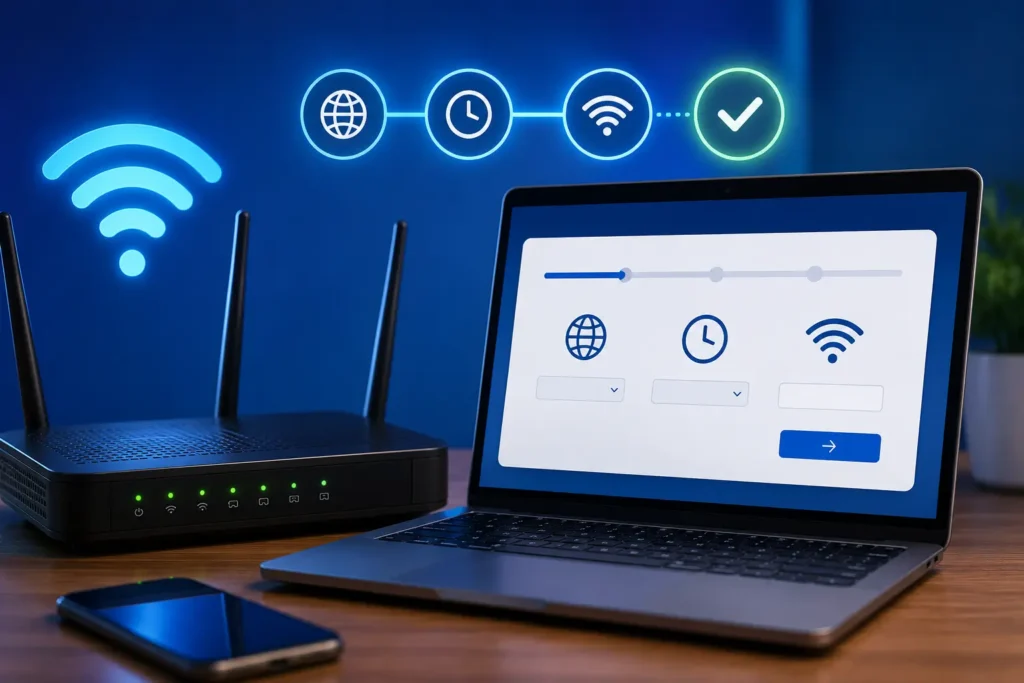
Step 7: Run the Setup Wizard (If Prompted)
Most modern routers walk you through internet connection type, time zone, and Wi-Fi naming automatically.
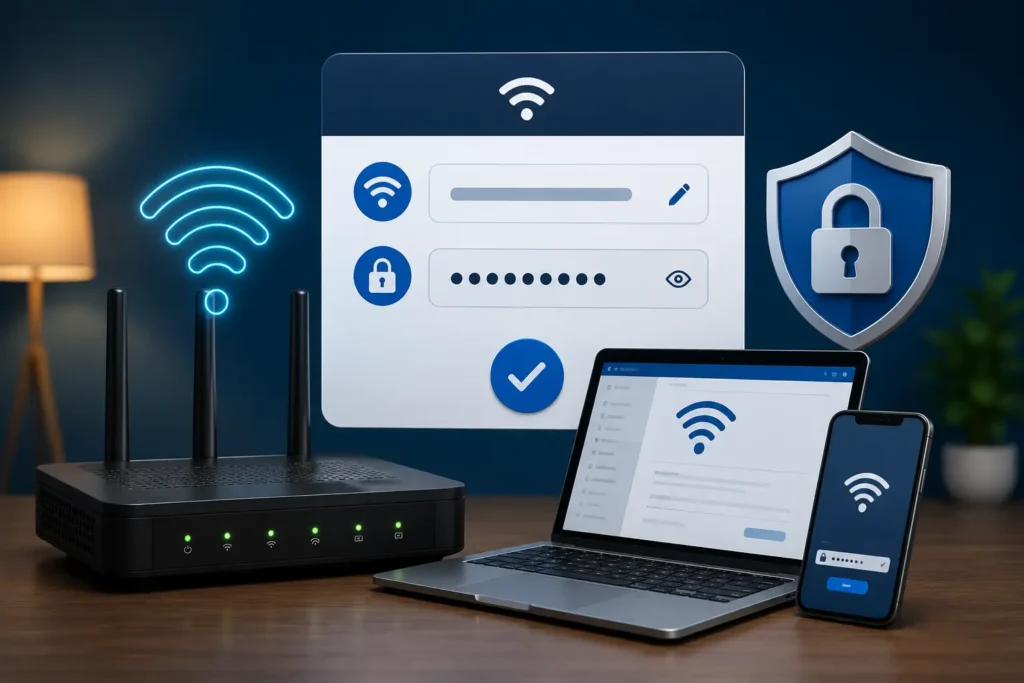
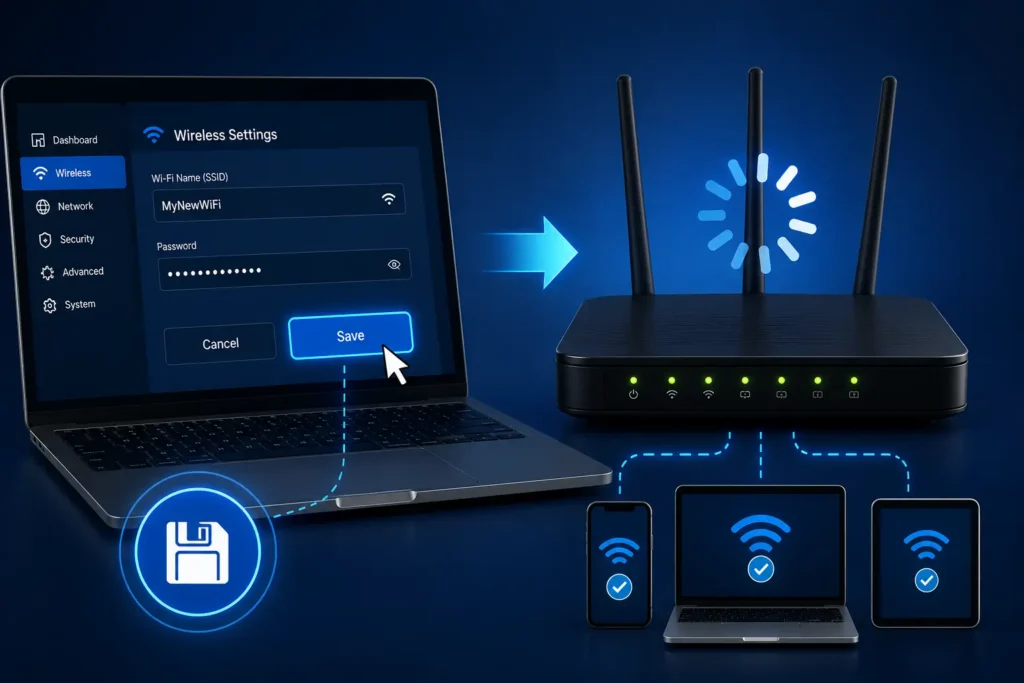
Step 8: Set Your Wi-Fi Name and Password
Choose a unique SSID and a strong Wi-Fi password — avoid reusing your admin panel password here.
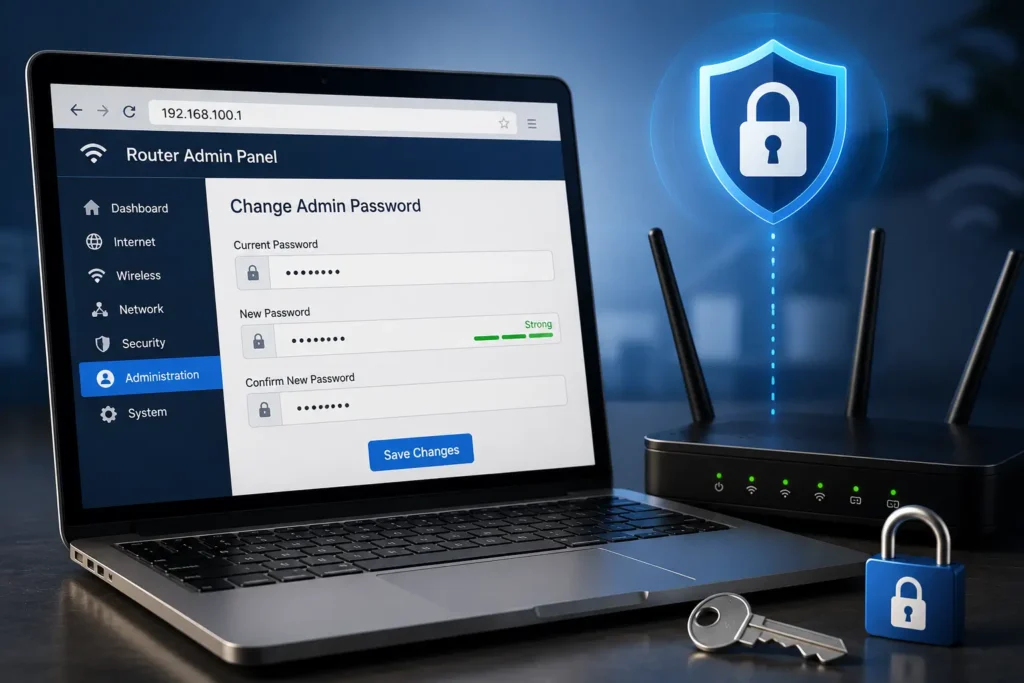
Step 9: Change the Admin Panel Password
This is one of the most skipped steps — and one of the most important, covered in detail below.
Step 10: Save and Reboot
Apply your settings and let the router restart. Reconnect your devices to the new Wi-Fi network name.
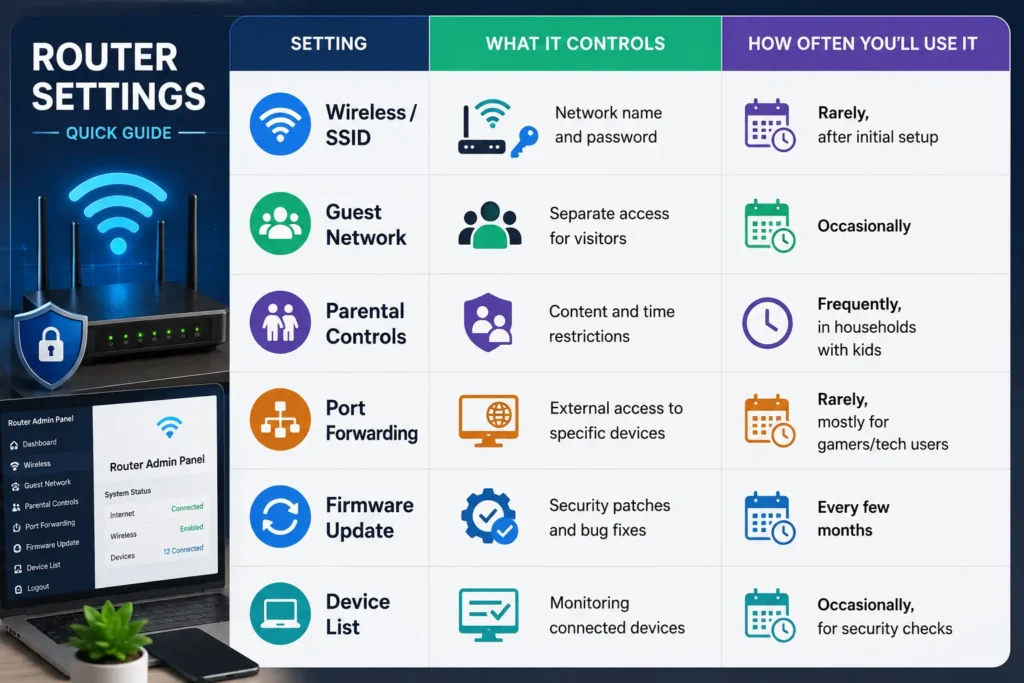
What You Can Configure in the Admin Panel
Once you're logged in to 192.168.1.1, the dashboard typically gives you control over:
- Wireless settings — SSID, password, and encryption type (WPA3 is the current recommended standard)
- Admin credentials — the username/password for the panel itself
- Guest network — a separate Wi-Fi network for visitors, isolated from your main devices
- Parental controls — content filtering and device time limits
- Port forwarding — routing external requests to a specific device (used for gaming, servers, or remote cameras)
- Firmware updates — checking for and installing manufacturer patches
- DHCP settings — how IP addresses are assigned to connected devices
- Connected devices list — a live view of everything using your network
Quick Comparison: Common Admin Panel Sections
192.168.1.1 Not Working? Troubleshooting Guide
This is where most people actually land on this page. Based on commonly reported troubleshooting cases, here are the most frequent causes — and fixes.
1. You Typed It Into a Search Bar Instead of the Address Bar
Frequently observed as the single most common mistake. Typing "192.168.1.1" into Google's search box returns search results, not the login page. Make sure it's in the browser's URL/address bar.
2. You're Not Connected to the Right Network
If you're on a different Wi-Fi network — say, your phone is still on mobile data or a neighbor's network — the address won't resolve. Double-check you're connected to your own router's network.
3. Your Router Uses a Different Default IP
Not every router uses 192.168.1.1. Based on common troubleshooting cases, a notable share of "it doesn't work" reports simply involve a router that defaults to 192.168.0.1, 192.168.2.1, or 10.0.0.1 instead. Check the label on the device to confirm.
4. Browser Cache or Cookies Are Interfering
Old cached login sessions can sometimes cause a blank or broken login page. Try:
- Clearing your browser cache
- Using a private/incognito window
- Trying a different browser entirely
5. IP Address Was Changed Previously
If someone customized the router's IP in the past (a fairly common practice among more advanced users), 192.168.1.1 may simply no longer be the correct address for that device.
6. Ethernet or Wi-Fi Connection Issue
If the connection itself is unstable, the login page may time out. A wired Ethernet connection to the router is the most reliable way to rule this out.
7. Incorrect Login Credentials
Nearly a third of login failures in common troubleshooting scenarios come down to leftover or forgotten custom credentials from a previous configuration — not the router being broken at all.
Troubleshooting Checklist
- Typed the IP into the address bar, not search bar
- Connected to your own router's Wi-Fi or via Ethernet
- Confirmed the correct default IP on the router label
- Tried an incognito/private browser window
- Tried a different browser or device
- Verified you're using current (not old) login credentials
- Restarted the router and tried again
192.168.1.1 vs Other Common Router IPs
Because default IPs vary by manufacturer, it helps to know what else is out there. Here's how the most common private router addresses compare.
| IP Address | Commonly Used By | Notes |
|---|---|---|
| 192.168.1.1 | TP-Link, Netgear, Linksys, Asus | The most widely used default |
| 192.168.0.1 | D-Link, some TP-Link/Tenda models | Second most common default |
| 192.168.2.1 | Belkin | Less common, brand-specific |
| 10.0.0.1 | Many ISP-provided gateways (e.g., Xfinity) | Common with cable modem/router combos |
| 192.168.1.254 | Some fiber ONTs and ISP routers | Used mostly in Europe/Asia |
If 192.168.1.1 doesn't take you anywhere, trying 192.168.0.1 or 10.0.0.1 next resolves the issue in the large majority of cases.
How to Reset Your Router to Factory Settings
If you've lost track of custom login credentials, a factory reset restores everything to default — including 192.168.1.1 access with the original username and password.
Steps to Factory Reset
- Locate the small Reset button on the back or bottom of the router — usually recessed, requiring a pin or paperclip.
- Press and hold it for 10–30 seconds, depending on the model (check your manual for the exact timing).
- Wait for the router to reboot fully — lights will flash and then stabilize.
- Reconnect and log in using the original default credentials from the label.
- Redo your setup — Wi-Fi name, password, and any custom configurations will need to be re-entered.
Important: A factory reset wipes all custom settings, including port forwarding rules, custom DNS, and parental controls. It won't damage the hardware, but it does mean starting configuration from scratch.
Router Security Best Practices
Once you're inside the admin panel, a few habits go a long way toward keeping your network safe. In my experience reviewing home network setups, these are the steps most frequently skipped — and the ones that matter most.
- Change the default admin password immediately. Leaving it as "admin/admin" is one of the most common ways networks get compromised.
- Use WPA3 encryption if your router supports it; fall back to WPA2 if not. Avoid WEP entirely — it's outdated and easily broken.
- Create a separate guest network for visitors and smart-home devices, keeping them isolated from your main devices.
- Keep firmware updated. Manufacturers regularly patch security vulnerabilities, and outdated firmware is frequently cited as a contributing factor in home network breaches.
- Disable remote management unless you specifically need it — this closes off a potential entry point for outside access.
- Choose a unique SSID that doesn't reveal personal information (avoid names like "SmithFamilyWiFi").
- Review connected devices periodically through the admin dashboard to spot anything unfamiliar.
FAQs About 192.168.1.1 Admin Login
What is the default password for 192.168.1.1?
There's no single universal password — it depends on the router brand. Most commonly it's some combination of "admin," "password," or a blank field. Check the label on your specific router for the exact default.
Why can't I access 192.168.1.1?
The most frequent causes are typing the address into a search engine instead of the browser bar, being connected to the wrong network, or the router actually using a different default IP like 192.168.0.1 or 10.0.0.1.
How do I find my router's actual IP address if it's not 192.168.1.1?
On Windows, open Command Prompt and type ipconfig, then look for "Default Gateway." On Mac, go to System Settings > Network > Wi-Fi > Details, and check the router address. On most smartphones, the router IP appears under the Wi-Fi network's details.
Is 192.168.1.1 the same as my public IP address?
No. 192.168.1.1 is a private address only visible within your own network. Your public IP address is assigned by your internet service provider and is what websites see when you browse the internet.
Can I change 192.168.1.1 to a different address?
Yes. Inside the admin panel, under LAN or network settings, you can assign a custom IP range for your router. This is common among more advanced users managing multiple networks, though it's unnecessary for most home setups.
What should I do if I forgot my router's admin password?
A factory reset is the standard fix. Hold the reset button for 10–30 seconds, then log in again using the original default credentials printed on the device.
Is it safe to leave the default password unchanged?
No. Leaving default credentials unchanged is frequently reported as a major security risk, since default logins are publicly documented and easily guessed by anyone within Wi-Fi range or, in some misconfigured setups, from outside the network.
Does every router use 192.168.1.1?
No. While it's the most common default, a significant share of routers — particularly from D-Link, Belkin, and many ISP-provided gateways — use a different default address entirely.
Why does my browser show "This site can't be reached" for 192.168.1.1?
This typically means either you're not connected to that specific router's network, the router uses a different IP, or there's a temporary connectivity issue. Restarting the router often resolves it.
Can I access 192.168.1.1 from outside my home network?
Not by default, and this is intentional — private IP addresses aren't reachable from the public internet. Remote router access requires specifically enabling a remote management feature, which most users should leave off for security reasons.
Conclusion
The 192.168.1.1 admin login is, in the end, a small doorway with a big job: it's how you take control of your own Wi-Fi network instead of leaving it on factory defaults.
Here's the short version to keep in mind:
- 192.168.1.1 is a private IP address used by many routers as their default gateway.
- Type it directly into your browser's address bar, not a search engine.
- Default login credentials are almost always on a sticker on the router itself.
- If it doesn't work, check whether your router actually uses a different default IP like 192.168.0.1 or 10.0.0.1.
- Once inside, prioritize changing the default admin password and enabling strong Wi-Fi encryption.
- A factory reset is always available as a fallback if you're ever locked out.
Take five minutes after your next login to review your password strength and connected devices list — it's a small habit that meaningfully reduces your exposure to common home network security issues.