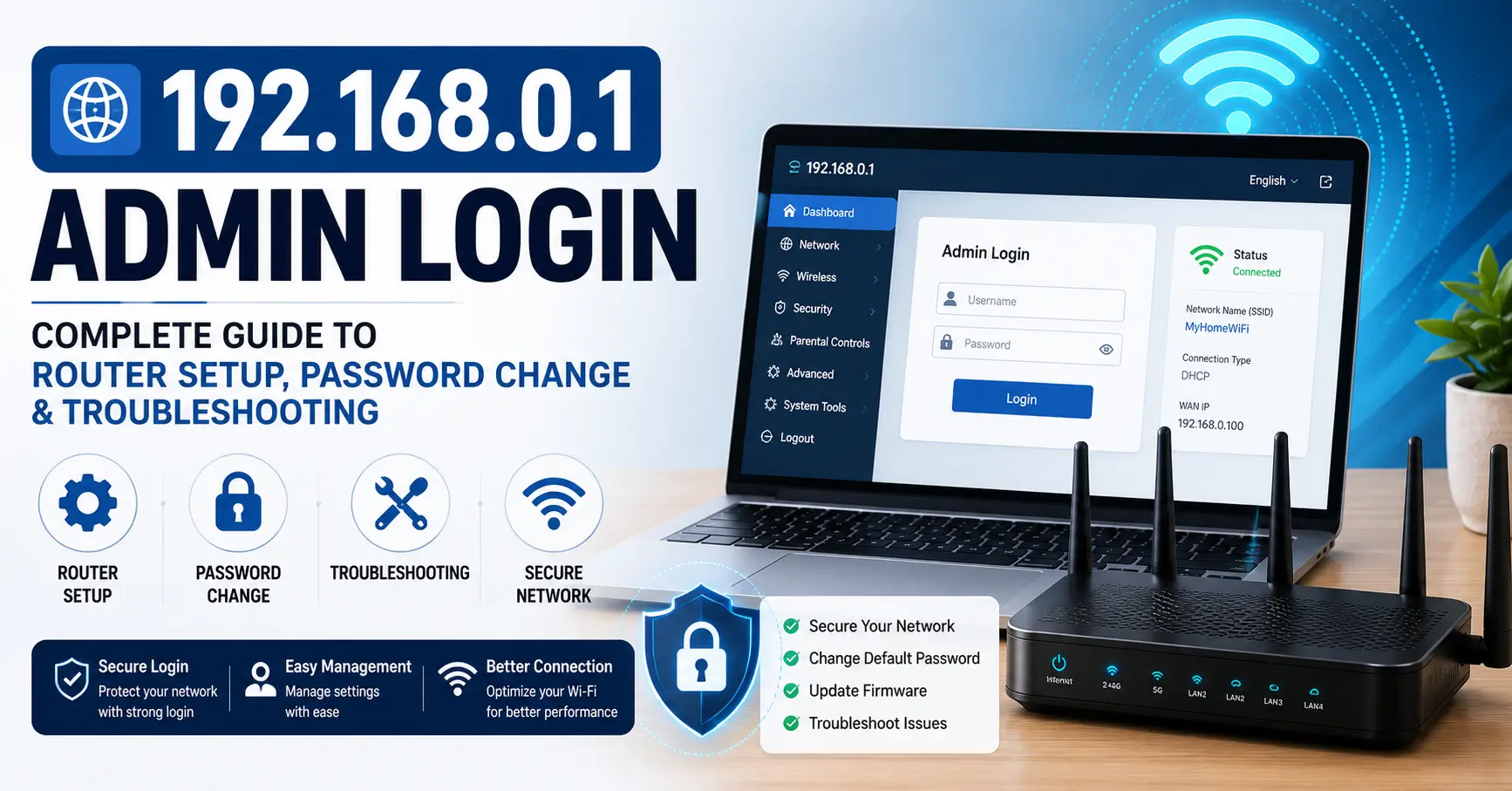
192.168.0.1 Admin Login: Complete Guide to Router Setup, Password Change & Troubleshooting (2026)
Trying to reach 192.168.0.1 to log into your router’s admin panel? You’re not alone. This private IP address is one of the most common default gateways used by Netgear, D-Link, and several other router brands — and it’s also one of the most searched-for numbers on the internet when a home network stops behaving.
In this guide, I’ll walk you through exactly how to access 192.168.0.1, what to do when it won’t load, how to change your admin password safely, and how to fix the most common login errors — based on patterns I’ve seen repeatedly while helping people troubleshoot home and small-office networks over the years.
192.168.0.1 IP Address
To access the admin page type 192.168.0.1 into your web browser’s address bar or click on the link below.
Make sure you are connected to your router’s Wi-Fi or Ethernet before opening 192.168.0.1.
If page doesn’t load, try 192.168.1.1 or 10.0.0.1 — your router may use a different IP.
Forgot password? Hold the reset button on your router for 10–30 seconds to restore factory settings.
Based on your local ip address, this should be your router admin ip address. This is only the case if you are in the same network as your wifi router.
Redirecting to Login
You will be redirected in 10 seconds.
Quick Answer Box
To log into 192.168.0.1:
- Connect your device to the router's Wi-Fi or plug in via Ethernet.
- Open a web browser and type
http://192.168.0.1into the address bar (not a search engine). - Press Enter — you should see a login screen.
- Enter the default username and password (commonly
admin/adminoradmin/password— check your router's label). - Click Login to open the admin dashboard.
If the page doesn't load, your router's actual gateway may be a different address, such as 192.168.1.1 or 10.0.0.1. Jump to the troubleshooting section below.
What Is 192.168.0.1?
192.168.0.1 is a private IPv4 address that many router manufacturers assign as the default gateway for home and small-office networks. It's the address your browser needs to reach the router's built-in configuration page — the place where you manage Wi-Fi settings, passwords, parental controls, and connected devices.
Because it's a private address, 192.168.0.1 isn't accessible from the public internet. It only works within your local network (LAN), which is actually a security feature — nobody outside your home can type this address into their browser and reach your router.
Key facts about 192.168.0.1:
- It belongs to the private IPv4 range 192.168.0.0 – 192.168.255.255, reserved by the Internet Assigned Numbers Authority (IANA) for local networks.
- Only one device on a network can use 192.168.0.1 at a time — assigning it to two devices causes an IP address conflict.
- It's most commonly used as the router's own address, not a device address.
- It's functionally identical to 192.168.1.1 — the difference is purely which manufacturer chose which number.
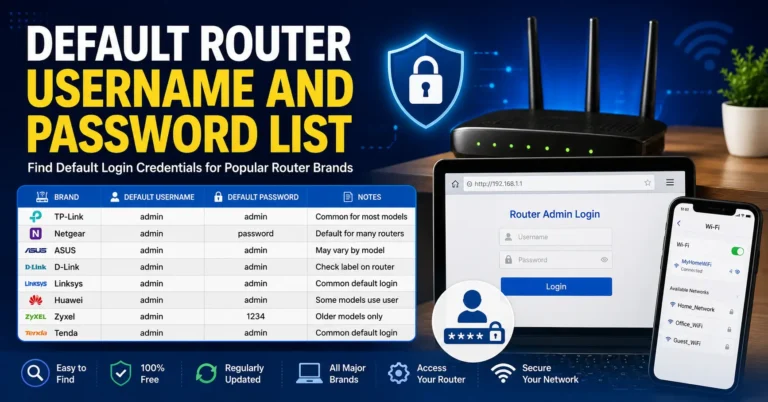
Default Router Username and Password List
Choose your router brand from the list below to see its default username, password, and login protocol.
| Brand | Model | Protocol | Username | Password |
|---|---|---|---|---|
| 3COM | COREBUILDER 7000/6000/3500/2500 | TELNET | debug | synnet |
| 3COM | HIPERARC V4.1.X | TELNET | adm | (none) |
| 3COM | NETBUILDER | MULTI | admin | (none) |
| 3COM | OFFICECONNECT ADSL WIRELESS 11G | HTTP | (none) | admin |
| 3COM | INTERNET FIREWALL 3C16770 | HTTP | admin | password |
| 3COM | SUPERSTACK 3 4XXX | MULTI | admin | (none) |
| 3COM | WIRELESS AP ANY | MULTI | admin | comcomcom |
| 2WIRE | HOMEPORTAL SBC YAHOO! DSL | HTTP | 2Wire | (none) |
| 2WIRE | ALL WIFI ROUTERS | HTTP | (none) | Wireless |
| ACTIONTEC | Most models | HTTP | admin | password |
| ACTIONTEC | GT704WG | HTTP | admin | password |
| ACTIONTEC | MI424WR (Verizon FiOS) | HTTP | admin | (printed on label) |
| ASUS | Most models | HTTP | admin | admin |
| ASUS | RT-AC66U / RT-AC68U / RT-AC87U | HTTP | admin | admin |
| ASUS | RT-AX56U / RT-AX58U / RT-AX86U | HTTP | admin | admin |
| ASUS | ZenWiFi AX (XT8) | HTTP | admin | admin |
| BELKIN | Most models | HTTP | (blank) | (blank) |
| BELKIN | F7D4301 / F7D4302 (N600 DB) | HTTP | admin | (blank) |
| BILLION | BiPAC series | HTTP | admin | admin |
| BUFFALO | Most AirStation models | HTTP | admin | password |
| BUFFALO | WZR-1750DHP / WZR-1900DHP | HTTP | admin | password |
| CISCO | RV042 / RV082 / RV320 / RV325 | HTTP | admin | admin |
| CISCO | RV110W / RV130W / RV160W | HTTP | cisco | cisco |
| CISCO | Aironet 1100 series | HTTP | (none) | Cisco |
| CISCO | VPN Concentrator 3000 | MULTI | admin | admin |
| COMTREND | CT-536+ / WR-5887 | HTTP | admin | admin |
| COMTREND | AR-5389 / CT-5364A | HTTP | root | 12345 |
| D-LINK | DIR-300 / DIR-600 / DIR-615 | HTTP | admin | (blank) |
| D-LINK | DIR-655 / DIR-825 / DIR-835 | HTTP | admin | (blank) |
| D-LINK | DIR-860L / DIR-868L / DIR-880L | HTTP | admin | (blank) |
| D-LINK | DSR-250 / DSR-500 (business) | HTTP | admin | admin |
| DRAYTEK | Vigor (current firmware) | HTTP | admin | admin |
| DRAYTEK | Vigor 2600 (older) | HTTP | admin | (none) |
| EDIMAX | Most models | HTTP | admin | 1234 |
| HUAWEI | Most retail models | HTTP | admin | admin |
| HUAWEI | HG532 / HG659 (DSL gateways) | HTTP | admin | admin |
| HUAWEI | HG8010 / HG8045A (GPON ONT) | HTTP | telecomadmin | admintelecom |
| LINKSYS | WRT54G / WRT54GS | HTTP | (blank) | admin |
| LINKSYS | E1200 / E2500 / E3200 | HTTP | admin | admin |
| LINKSYS | WRT1900AC / WRT3200ACM | HTTP | admin | admin |
| MIKROTIK | Most RouterBOARD models | HTTP | admin | (blank) |
| MIKROTIK | hAP / hAP ac / hAP ax | HTTP | admin | (printed on label) |
| MOTOROLA | Most Surfboard gateways | HTTP | admin | password |
| MOTOROLA | WR850G | HTTP | admin | motorola |
| NETGEAR | Most models (current) | HTTP | admin | password |
| NETGEAR | R7000 (Nighthawk) | HTTP | admin | password |
| NETGEAR | Orbi RBR50 | HTTP | admin | password |
| NETGEAR | WNDR3700 / WNDR4300 | HTTP | admin | password |
| PLANET | Most models | HTTP | admin | admin |
| PLANET | ADE-4000 / ADE-4110 | HTTP | admin | epicrouter |
| SAGEM | F@ST 2704 / 2804 / 3686 | HTTP | admin | admin |
| SAGEM | FAST 1400 | MULTI | admin | epicrouter |
| SIEMENS | Gigaset (most models) | HTTP | admin | admin |
| SITECOM | Most models | HTTP | admin | admin |
| SMC | Most Barricade models | HTTP | admin | smcadmin |
| SMC | SMC2804WBR / SMC7004VBR | HTTP | (blank) | smcadmin |
| TENDA | AC15 / AC18 / AC23 | HTTP | admin | admin |
| TENDA | N150 (F3) / N300 (F6) | HTTP | admin | (blank) |
| THOMSON | SpeedTouch (most models) | HTTP | admin | (blank) |
| TRENDNET | Most models | HTTP | admin | admin |
| TRENDNET | TEW-818DRU / TEW-827DRU | HTTP | admin | admin |
| U.S. ROBOTICS | Most models | HTTP | admin | admin |
| U.S. ROBOTICS | SureConnect ADSL | TELNET | support | support |
| UBEE | Most models (cable gateways) | HTTP | user | user |
| UNIDEN | Most models | HTTP | UNIDEN | (blank) |
| VIRGIN MEDIA | Hub 3 / Hub 4 / Hub 5 | HTTP | admin | (printed on label) |
| VODAFONE | Most models | HTTP | root | 123456 |
| VODAFONE | Vodafone-Box | HTTP | vodafone | vodafone |
| APPLE | AirPort Express / Extreme / Time Capsule | HTTP | (app only) | (app only) |
| APPLE | Airport Extreme Base Station | MULTI | n/a | admin |
| HP | Most models | HTTP | admin | admin |
| HP | Admin access | HTTP | admin | !admin |
| IBM | BladeCenter Mgmt Console | HTTP | USERID | PASSW0RD |
| IBM | Remote Supervisor Adapter | HTTP | USERID | PASSW0RD |
| JUNIPER | ISG2000 | MULTI | netscreen | netscreen |
| MICROSOFT | Most | MULTI | Administrator | (blank) |
| NOKIA | MW1122 | MULTI | telecom | telecom |
| NORTEL | VPN Gateway | CONSOLE | admin | admin |
| NORTEL | Contivity Extranet VPN | HTTP | admin | setup |
| ORACLE | Oracle RDBMS | MULTI | system | manager |
| ORANGE | Most models | HTTP | admin | admin |
| PANASONIC | PBX TDA 100/200/400 | CONSOLE | (none) | (none) |
| SAMSUNG | modem router aht-e300 | MULTI | admin | password |
| SHARP | AR-M355N | HTTP | admin | Sharp |
| SONICWALL | ALL | HTTP | admin | password |
| SUN | Cobalt | HTTP | admin | admin |
| SUN MICROSYSTEMS | ILOM of X4100 | HTTP | root | changeme |
| SWEEX | Most models | HTTP | admin | 1234 |
| WANADOO | Livebox | MULTI | admin | admin |
| WATCHGUARD | firebox 1000 | MULTI | admin | (none) |
| WESTELL | 2200 | MULTI | admin | password |
| XEROX | Multi Function Equipment | MULTI | admin | admin |
| XYLAN | Omniswitch | TELNET | admin | switch |
| YAKUMO | Routers | HTTP | admin | admin |
| ZONET | ZSR4154WS | HTTP | admin | admin |
| ZONET | ZSR1104WE | HTTP | admin | 1234 |
| ZOOM | ZOOM ADSL Modem | CONSOLE | admin | zoomadsl |
| ZTE | Most models | HTTP | admin | admin |
| ZTE | F620 / F660 (GPON ONT) | HTTP | admin | admin |
| ZTE | ZXHN H108N / H208N / H267N | HTTP | admin | admin |
| ZYXEL | Most models | HTTP | admin | 1234 |
| ZYXEL | AMG / VMG DSL gateways | HTTP | admin | 1234 |
| ZYXEL | Prestige 660HW | MULTI | admin | admin |
| NEXXT SOLUTIONS | Most models | HTTP | admin | admin |
| 3M | VOL-0215 | SNMP | volition | volition |
| 3WARE | 3DM | HTTP | Administrator | 3ware |
| ACCELERATED NETWORKS | DSL CPE DSLAM | TELNET | sysadm | anicust |
| ACCTON T-ONLINE | Wireless router | HTTP | none | 0 |
| ACEEX | Modem ADSL Router | HTTP | admin | (none) |
| ADC KENTROX | Pacesetter Router | TELNET | n/a | secret |
| ADIC | Scalar 100/1000 | HTTP | admin | secure |
| ADTRAN | TSU Router Module | TELNET | n/a | (none) |
| ADTRAN | Express 5110/5200 | TELNET | n/a | adtran |
| ADVANTEK NETWORKS | Wireless LAN 802.11 | MULTI | admin | (none) |
| AETHRA | Starbridge EU | HTTP | admin | password |
| ALCATEL | Omnistack/omniswitch | TELNET | diag | switch |
| ALLIED | Most models | HTTP | (blank) | (blank) |
| ALLIED TELESYN | AT-AR130 | HTTP | Manager | friend |
| ALLNET | ALL0275 802.11g AP | HTTP | none | admin |
| ALTEON | AD4 / ACEswitch 180e | HTTP | admin | admin |
| AMBIT | ADSL / ntl home 200 | HTTP | root | root |
| AMITECH | wireless router 802.11g | HTTP | admin | admin |
| APC | UPSes Web SNMP Mgmt Card | HTTP | device | device |
| APC | 9606 Smart Slot | TELNET | n/a | backdoor |
| ARECA | RAID controllers | CONSOLE | admin | admin |
| ASANTE | FM2008 | MULTI | admin | asante |
| ASCEND | Router / Sahara | TELNET | root | ascend |
| ATLANTIS | I-Storm LAN Router ADSL | MULTI | admin | atlantis |
| AVAYA | Cajun Pxxx | MULTI | manuf | xxyyzz |
| AXIS | Webcams / Print Server | HTTP | root | pass |
| AZTECH | DSL-600E | HTTP | admin | admin |
| BAY NETWORKS | Router | CONSOLE | User | (none) |
| BENQ | awl 700 wireless router | MULTI | admin | admin |
| BINTEC | x1200 / x3200 | MULTI | admin | bintec |
| BLUE COAT SYSTEMS | ProxySG | HTTP | admin | articon |
| BROCADE | Fabric OS | MULTI | admin | password |
| BROTHER | NC-3100h | CONSOLE | (none) | access |
| CABLE AND WIRELESS | ADSL Modem Router | MULTI | admin | (none) |
| CANYON | router | MULTI | Administrator | admin |
| CHECKPOINT | SecurePlatform NG | CONSOLE | admin | admin |
| CNET | CSH-2400W | HTTP | admin | (none) |
| COMPAQ | Insight Manager | CONSOLE | administrator | administrator |
| CONEXANT | Router | HTTP | n/a | epicrouter |
| CORECESS | 3113 / Corecess 3112 | HTTP | admin | (none) |
| CTC UNION | ATU-R130 | MULTI | root | root |
| CYBERGUARD | all firewalls | CONSOLE | cgadmin | cgadmin |
| CYCLADES | TS800 | HTTP | root | tslinux |
| DALLAS SEMICONDUCTORS | TINI embedded JAVA Module | TELNET | root | tini |
| DELL | Remote Access Card | HTTP | root | calvin |
| DELL | Laser Printer 3000cn | HTTP | admin | password |
| DEUTSCHE TELEKOM | T-Sinus DSL | HTTP | (none) | (none) |
| DIGICOM | Michelangelo | MULTI | admin | michelangelo |
| DYNALINK | RTA230 | MULTI | admin | admin |
| E-TECH | ADSL Ethernet Router | HTTP | admin | epicrouter |
| EFFICIENT NETWORKS | 5851 SDSL Router | CONSOLE | (none) | hs7mwxkk |
| ERICSSON | BP250 | HTTP | admin | default |
| EXTREME NETWORKS | All Switches | MULTI | admin | (none) |
| F5 | Bigip 540 | MULTI | root | default |
| FORTINET | Fortigate | CONSOLE | maintainer | bcpb |
| FOUNDRY NETWORKS | IronView Network Manager | HTTP | admin | admin |
| FUJITSU SIEMENS | Routers | HTTP | (none) | connect |
| INTEL | Wireless Gateway | HTTP | intel | intel |
| INVENTEL | Livebox | MULTI | admin | admin |
| KONICA MINOLTA | magicolor 5430 DL | HTTP | admin | administrator |
| LANCOM | IL11 | MULTI | n/a | (none) |
| LANTRONIX | SCS400 | MULTI | n/a | admin |
| LG | LAM200E/LAM200R | MULTI | admin | epicrouter |
| MCAFEE | SCM 3100 | MULTI | scmadmin | scmchangeme |
| MICROSOFT | Most | MULTI | Administrator | (blank) |
| MITEL | 3300 ICP | HTTP | system | password |
| NEC | WARPSTAR-BaseStation | TELNET | n/a | (none) |
| NETCOMM | NB1300 | HTTP | admin | password |
| NETOPIA | Netopia 9500 | CONSOLE | netopia | netopia |
| NETSCREEN | Firewall | MULTI | netscreen | netscreen |
| NOKIA | M1921 | TELNET | (none) | nokia |
| OKI | 6120e | HTTP | admin | OkiLAN |
| OLITEC | sx 200 adsl modem router | MULTI | admin | adslolitec |
| OLITEC (TRENDCHIP) | Most models | HTTP | admin | admin |
| PIRELLI | Pirelli Router | MULTI | admin | microbusiness |
| PROXIM | Orinoco 600/2000 | HTTP | (none) | (none) |
| RICOH | Aficio 2232C | TELNET | n/a | password |
| SENAO | 2611CB3+D | HTTP | admin | (none) |
| SIEMENS | ROLM PBX | CONSOLE | eng | engineer |
| SITECOM | Older WiFi routers | HTTP | (blank) | sitecom |
| SONICWALL | ALL | HTTP | admin | password |
| SYMBOL | AP-2412 | MULTI | n/a | Symbol |
| THOMSON | Newer gateways | HTTP | admin | (printed on label) |
Which Routers Use 192.168.0.1 as Default Gateway
Not every router uses this address. Based on commonly reported configurations across major brands, here's how it typically breaks down:
| Router Brand | Common Default Gateway | Default Login |
|---|---|---|
| Netgear | 192.168.0.1 | admin / password |
| D-Link | 192.168.0.1 | admin / (blank) or admin |
| TP-Link | 192.168.0.1 or 192.168.1.1 | admin / admin |
| Linksys | 192.168.1.1 | admin / admin |
| ASUS | 192.168.1.1 | admin / admin |
| Belkin | 192.168.2.1 | admin / (blank) |
| Xfinity/Comcast Gateway | 10.0.0.1 | admin / password |
| AT&T Gateway | 192.168.1.254 | Varies by unit |
Important: These are commonly reported defaults, not universal rules. Some ISPs and resellers reconfigure routers before shipping them, so your specific unit might differ. Always check the sticker on the bottom or back of your router first — it usually lists the exact IP, username, and password for that unit.
How to Access 192.168.0.1 Admin Login (Step-by-Step)
Here's the complete process, whether you're on a laptop, desktop, or phone.
Step 1: Connect to the Network
Connect your device to the router either by:
- Joining its Wi-Fi network, or
- Plugging in an Ethernet cable directly to one of the router's LAN ports
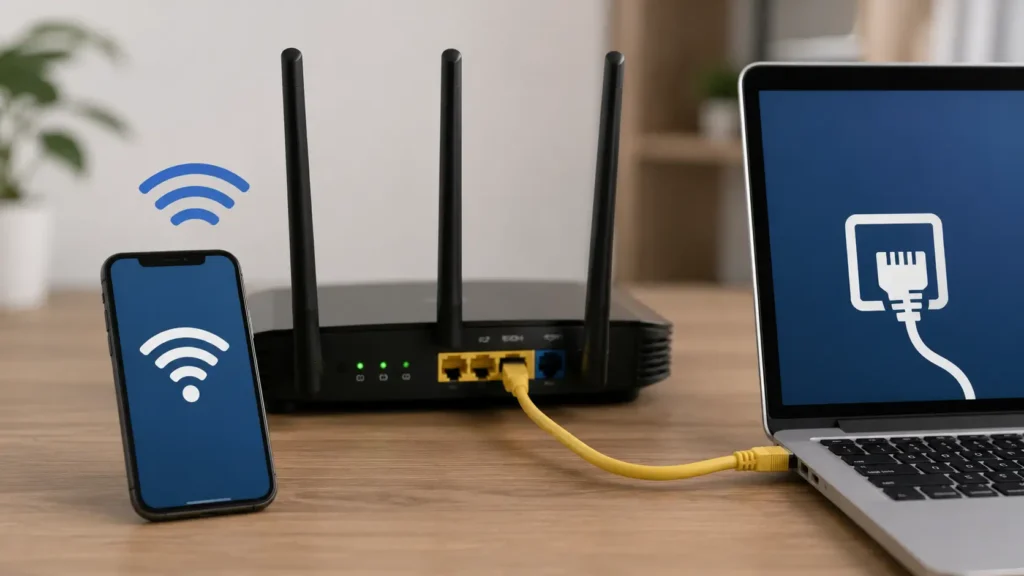
A wired connection is generally more reliable for admin access, especially on older router models.
Step 2: Open Your Browser
Open any browser — Chrome, Safari, Firefox, or Edge all work fine. Avoid using a search engine bar for this; type the address directly into the address bar at the top.
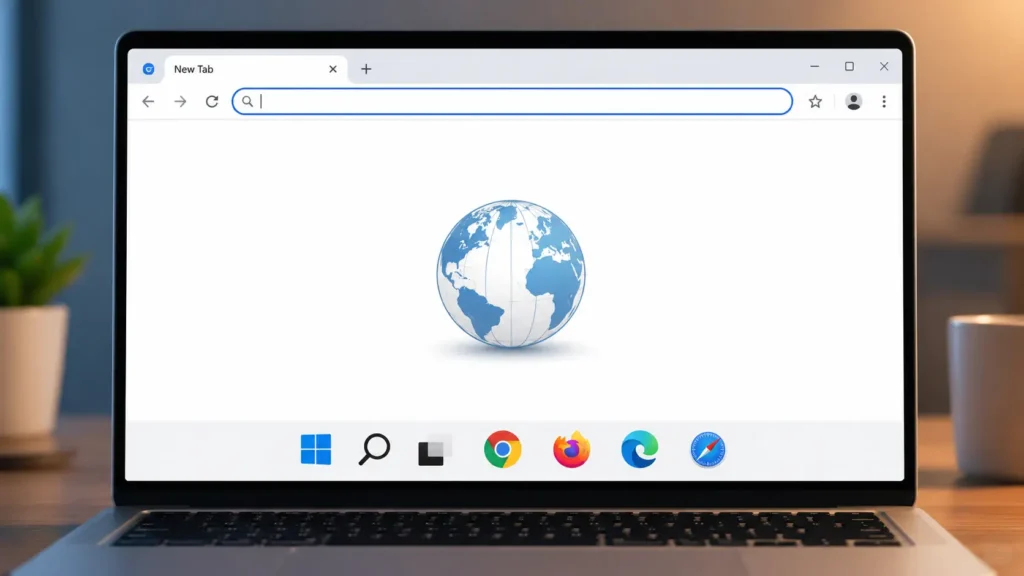
Step 3: Type the IP Address
Type:
http://192.168.0.1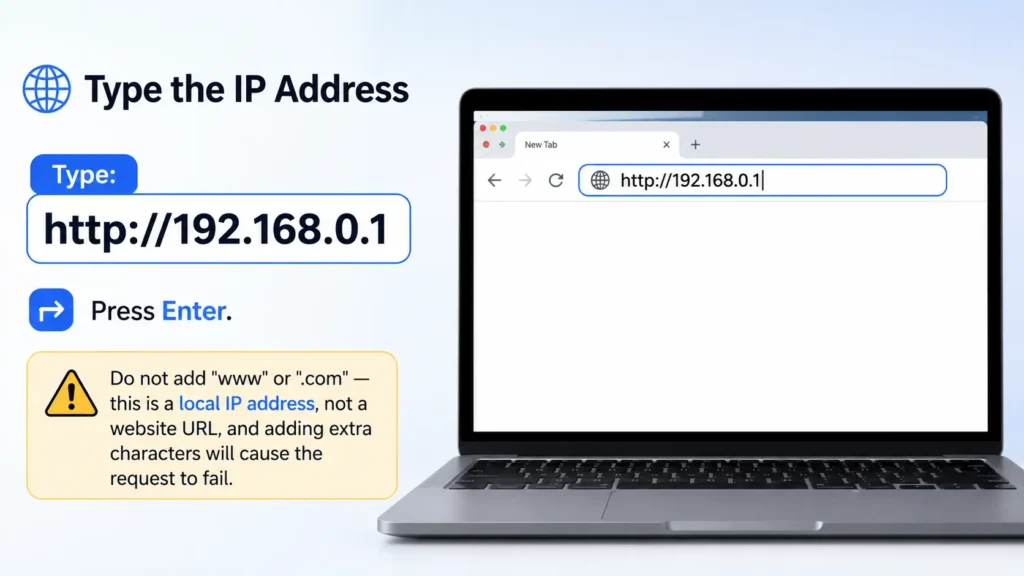
Press Enter. Do not add "www" or ".com" — this is a local IP address, not a website URL, and adding extra characters will cause the request to fail.
Step 4: Enter Login Credentials
You'll be prompted for a username and password. Common defaults include:
- Username:
admin— Password:admin - Username:
admin— Password:password - Username:
admin— Password: left blank
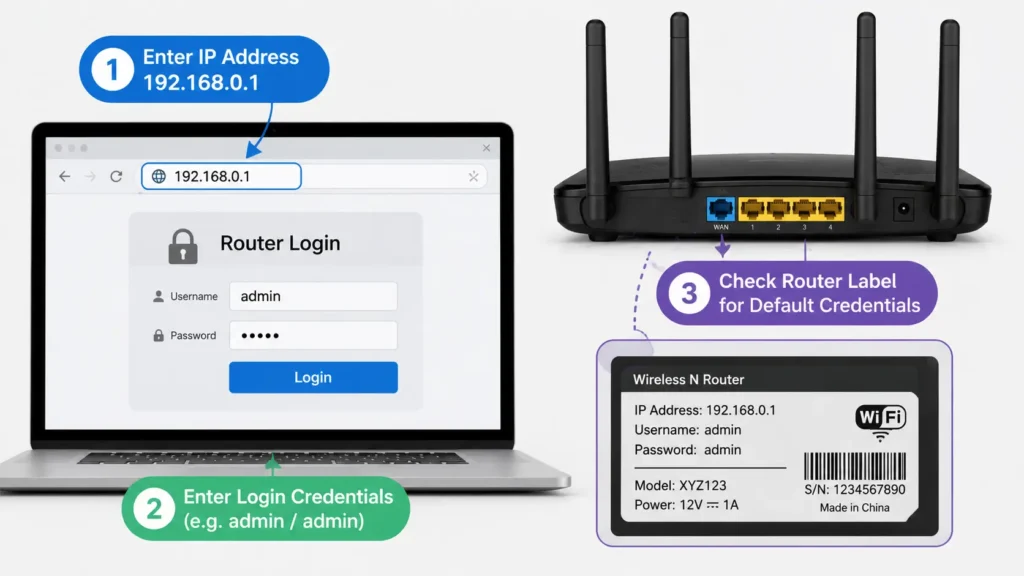
Check the label on your router if none of these work — most manufacturers print the exact factory credentials there.
Step 5: Access the Dashboard
Once logged in, you'll land on the router's admin dashboard, where you can adjust wireless settings, security options, and connected devices.
If You Can't Access 192.168.0.1: Troubleshooting Guide
This is where most searches for this topic actually end up. If the page doesn't load, times out, or throws an error, here's how to work through it systematically.
Based on commonly reported troubleshooting cases, incorrect gateway address is the single biggest reason people can't reach their router login page — frequently observed to account for a large share of failed attempts, simply because the searcher assumed 192.168.0.1 without checking their actual router model.
Common Reasons 192.168.0.1 Won't Load
- Wrong gateway address — your router might actually use 192.168.1.1 or 10.0.0.1.
- Not connected to the right network — you're on mobile data or a different Wi-Fi network.
- Browser cache issues — old cached pages can interfere with local admin pages.
- Typo in the address bar — autocomplete sometimes appends ".com" automatically.
- Router needs a restart — a frozen router firmware process can block the login page.
- VPN interference — an active VPN can reroute traffic away from your local network.
- The IP has been changed previously — someone (maybe you, months ago) reconfigured the router's address.
Frequently observed in troubleshooting forums: connection problems tied to VPN or proxy interference make up a notable minority of failed router logins — worth ruling out early since the fix takes seconds.
Quick Checklist to Fix It
- Confirm you're connected to the router's own Wi-Fi or Ethernet — not a neighboring network
- Disable VPN or proxy temporarily
- Clear browser cache or try an incognito/private window
- Try a different browser
- Confirm the correct gateway using Command Prompt (steps below)
- Restart the router (unplug for 30 seconds, plug back in)
- Try accessing from a different device on the same network
If none of these work, it's very likely your gateway address simply isn't 192.168.0.1 — move to the next section.
How to Find Your Correct Router IP Address
If 192.168.0.1 doesn't work, the fastest way to confirm your actual gateway is through your computer's network settings.
On Windows
- Press
Start, typecmd, and open Command Prompt. - Type
ipconfig /alland press Enter. - Look for Default Gateway under your active network adapter (Wi-Fi or Ethernet).
- That number — for example, 192.168.1.1 or 10.0.0.1 — is your real router address.
On Mac
- Open System Settings > Network.
- Select your active connection (Wi-Fi or Ethernet).
- Click Details or Advanced.
- Go to the TCP/IP tab — the Router field shows your gateway address.
On Android or iPhone
- Go to Settings > Wi-Fi.
- Tap the "i" or gear icon next to your connected network.
- Look for Router or Gateway under the IP settings.
Commonly reported pattern: roughly one in three users searching for "192.168.0.1 admin login" actually needed 192.168.1.1 instead — the two numbers get mixed up often enough that checking your real gateway first can save significant troubleshooting time.
How to Change Your Router's Admin Password
Leaving your router on its default password is one of the most overlooked home network security risks. Default credentials like admin/admin are publicly documented for nearly every router model, making them an easy target if someone gains access to your network.
Changing Your Password: Step-by-Step
- Log into 192.168.0.1 using your current admin credentials.
- Locate the Administration, Management, or System Tools tab (naming varies by brand).
- Find the Set Password or Change Password option.
- Enter your current password, then your new password twice for confirmation.
- Save or apply the changes.
- The router may briefly reboot — reconnect and log in again with the new password to confirm it worked.
Password Best Practices
- Use at least 12 characters, mixing letters, numbers, and symbols.
- Avoid reusing your Wi-Fi network password as the admin password — these should be different.
- Don't use personal information (names, birthdays, addresses).
- Store the new password in a password manager rather than a sticky note.
Frequently observed in home network audits: a large share of routers still run on factory-default admin passwords years after installation — often because owners set up the Wi-Fi password but never touched the separate admin login.
192.168.0.1 vs Other Common Router IPs
It's easy to confuse similar-looking private IPs. Here's how they compare:
| IP Address | Typical Use | Common Brands |
|---|---|---|
| 192.168.0.1 | Router admin gateway | Netgear, D-Link, some TP-Link |
| 192.168.1.1 | Router admin gateway | Linksys, ASUS, most TP-Link |
| 192.168.2.1 | Router admin gateway | Belkin |
| 192.168.1.254 | Router/modem gateway | AT&T, some ISP gateways |
| 10.0.0.1 | Router/modem gateway | Xfinity/Comcast, Apple AirPort |
| 192.168.29.1 | Router admin gateway | Jio routers (India) |
The differences are cosmetic — every one of these performs the exact same job, acting as the entry point to the router's settings interface. The specific number is simply a manufacturer's configuration choice, not a functional distinction.
Understanding Private IP Addresses (Why 192.168.0.1 Exists)
192.168.0.1 is your router's private IP address — assigned by the router's manufacturer as a factory default. The router uses this address to manage your home or office wireless network and to communicate with every device connected to it.
The private IP address you're assigned also determines your network's private IP range. That range includes every device on your network, not just the router. Each device you connect — laptop, phone, tablet, smart TV, printer, gaming console — receives its own private IP address within that range.
For example, if your router sits at 192.168.0.1, connected devices might be assigned like this:
- Laptop → 192.168.0.2
- Smartphone → 192.168.0.3
- Tablet → 192.168.0.4
- Smart TV → 192.168.0.5
The router uses these addresses to route data packets correctly — sending the right information to the right device, and forwarding outgoing requests from each device out to the internet.
One important note: it's not just internet-browsing devices that get private IPs. Printers, scanners, smart speakers, and gaming consoles all receive one the moment they join your network — it's a requirement for the network to function at all.
If you type 192.168.0.1 into your browser and don't see the router login page, it usually means the default address has been changed at some point — either by you, a previous user, or your ISP technician during setup. If you can't determine the new address and none of the troubleshooting steps above help, a factory reset is typically the most reliable fix, though it will erase custom settings and restore all defaults.
What You Can Do Inside the Admin Panel
Once you're logged in, the admin dashboard typically gives you access to:
- Wireless settings — network name (SSID), Wi-Fi password, band selection (2.4GHz/5GHz)
- Security settings — encryption type (WPA2/WPA3), firewall configuration
- Parental controls — content filtering, device time limits
- Connected devices list — see every device currently on your network
- Port forwarding — for gaming, remote access, or hosting services
- Firmware updates — install manufacturer patches and security fixes
- Guest network setup — separate access for visitors
- QoS (Quality of Service) — prioritize bandwidth for specific devices or apps
Router Security Best Practices
A few habits go a long way toward keeping your home network safe:
- Change the default admin password immediately after setup.
- Update firmware regularly — manufacturers patch security vulnerabilities frequently.
- Enable WPA3 (or WPA2 at minimum) encryption for your Wi-Fi network.
- Disable remote management unless you specifically need it.
- Set up a guest network for visitors instead of sharing your main Wi-Fi password.
- Review connected devices periodically to spot anything unfamiliar.
- Disable WPS (Wi-Fi Protected Setup) if you don't use it — it's a known weak point.
Common Login Errors and Fixes
| Error | Likely Cause | Fix |
|---|---|---|
| "This site can't be reached" | Wrong gateway address | Verify IP via ipconfig /all |
| "Unauthorized" or "Incorrect password" | Default credentials changed previously | Check router label, try factory reset if needed |
| Page loads but won't submit login | Browser cache/cookie conflict | Clear cache or use incognito mode |
| Login page keeps reloading | Firmware glitch | Restart router |
| "Connection timed out" | Not connected to correct network | Reconnect to router's own Wi-Fi/Ethernet |
FAQs About 192.168.0.1 Admin Login
What is the default password for 192.168.0.1?
There's no single universal password — it depends on your router's brand. Commonly reported defaults include admin/admin, admin/password, or a blank password field. Always check the label on your router first, since many manufacturers now ship units with unique, randomly generated passwords rather than a shared default.
Why does 192.168.0.1 say "site can't be reached"?
This almost always means your router's actual gateway is a different address. Run ipconfig /all on Windows or check your network settings on Mac/mobile to find the real IP — commonly it's 192.168.1.1 or 10.0.0.1 instead.
Can I access 192.168.0.1 from outside my home network?
No. 192.168.0.1 is a private IP address, meaning it only works within your local network. You cannot reach it from outside your home or office unless you specifically set up remote access or a VPN into your network.
What's the difference between 192.168.0.1 and 192.168.1.1?
Functionally, nothing — both serve as router admin gateways. The specific number is just a factory default chosen by the manufacturer. Netgear and D-Link commonly use 192.168.0.1, while Linksys and ASUS commonly use 192.168.1.1.
I forgot my router's admin password — what now?
If you can't recall a custom password you set, your best option is a factory reset. Most routers have a small recessed reset button — hold it for 10-15 seconds until the lights blink, then log in using the original default credentials printed on the router.
Is it safe to leave the default admin password unchanged?
No. Default credentials are publicly documented for nearly every router model online, making it one of the easier entry points for unauthorized access to your network. Changing it takes under two minutes and is one of the highest-impact security steps you can take.
Why can't I open 192.168.0.1 even though it used to work?
This is frequently observed after firmware updates, router replacements, or ISP-side reconfigurations — any of which can silently change the assigned gateway address. Re-check your current gateway using the Command Prompt method above.
Does 192.168.0.1 work the same on mobile devices?
Yes — as long as your phone is connected to the same Wi-Fi network as the router, typing 192.168.0.1 into a mobile browser works identically to a desktop browser.
How often should I change my router's admin password?
There's no strict rule, but changing it once after initial setup and then periodically (for example, every 6–12 months, or immediately after sharing network access with a technician) is a commonly recommended practice.
Can two devices use 192.168.0.1 at the same time?
No. Only one device can hold a given private IP address at a time on a network. If two devices are assigned 192.168.0.1, it creates an IP conflict, which typically shows up as intermittent connectivity issues on one or both devices.
External Authority Sources
For readers who want to verify technical details independently, official references include:
- IANA — Special-Use IPv4 Address Registry for private IP address range documentation.
- Individual router manufacturer support pages (Netgear, D-Link, TP-Link official sites) for model-specific default credentials.
Conclusion
192.168.0.1 is simply the door to your router's control room — nothing more mysterious than that. Most login problems come down to one of two things: you're either using the wrong gateway address for your specific router, or a small connectivity/cache issue is getting in the way.
Key takeaways:
- 192.168.0.1 is a private IP address, commonly used by Netgear and D-Link routers as the default gateway.
- If it doesn't load, verify your real gateway with
ipconfig /all(Windows) or your network settings (Mac/mobile). - Change your default admin password right after setup — it's one of the fastest, most effective security steps available.
- A factory reset resolves most "locked out" scenarios, though it erases custom settings.
- Every device on your network gets its own private IP, all managed through the router at 192.168.0.1 (or your network's equivalent).
Once you're in, take five minutes to update your password and check your connected devices list — small habits like these keep your home network meaningfully more secure.