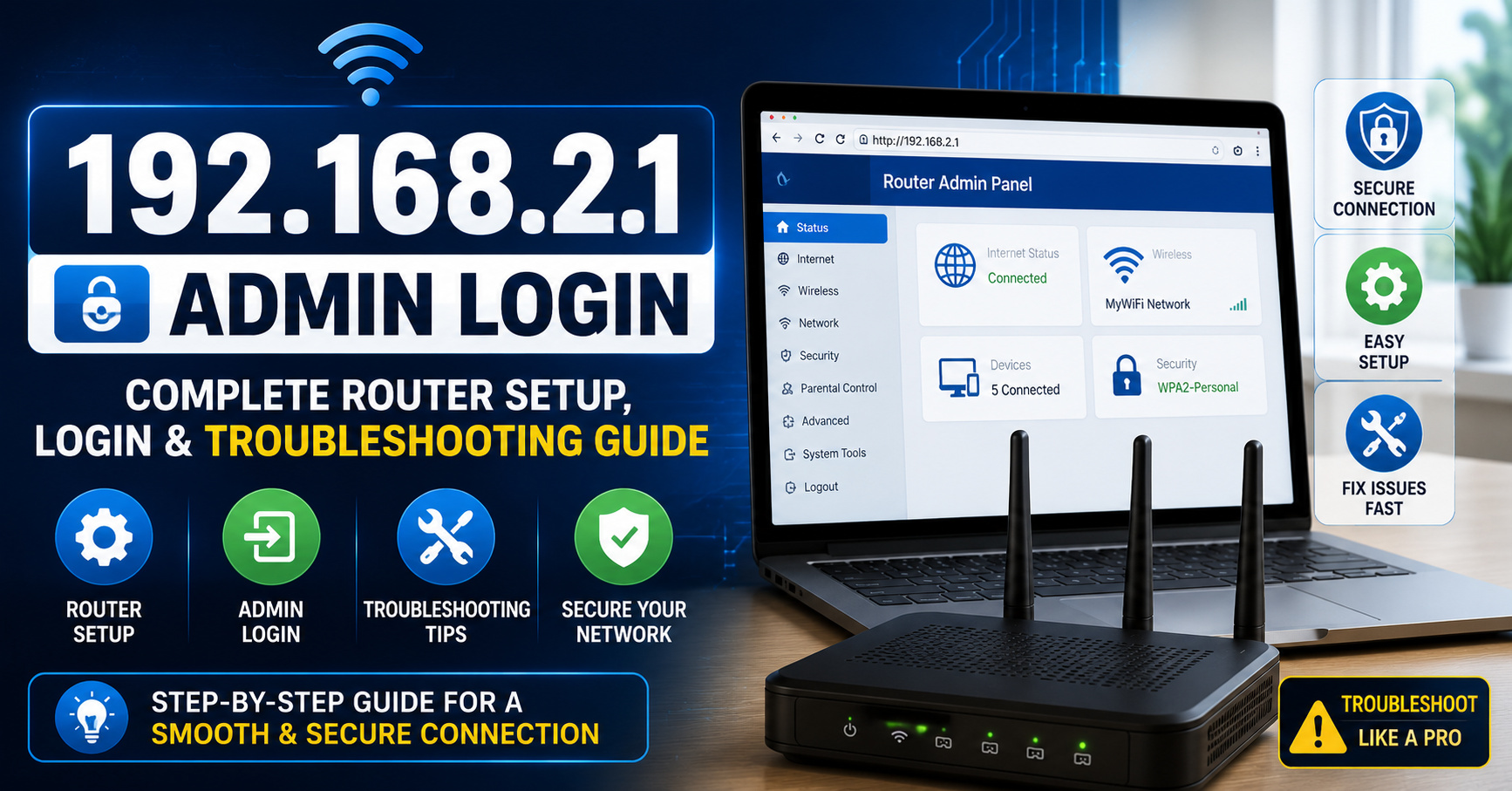
192.168.2.1 Admin Login: Complete Router Setup, Login & Troubleshooting Guide
192.168.2.1 Admin Login is the gateway to your router’s admin panel, where you can manage WiFi settings, change your network name and password, configure security options, update firmware, and troubleshoot connection issues.
Whether you’re setting up a new router or fixing login problems, this complete guide explains everything you need to know about accessing 192.168.2.1 safely and efficiently. You’ll also learn how to resolve common errors, identify compatible router brands, and secure your home or office network using the latest best practices for 2026.
192.168.2.1 IP Address
To access the admin page type 192.168.2.1 into your web browser’s address bar or click on the link below.
Make sure you are connected to your router’s Wi-Fi or Ethernet before opening 192.168.2.1.
If page doesn’t load, try 192.168.1.1 or 10.0.0.1 — your router may use a different IP.
Forgot password? Hold the reset button on your router for 10–30 seconds to restore factory settings.
Based on your local ip address, this should be your router admin ip address. This is only the case if you are in the same network as your wifi router.
Redirecting to Login
You will be redirected in 10 seconds.
Quick Answer Box
How do I log in to 192.168.2.1?
- Connect your device to the router's Wi-Fi or Ethernet.
- Open any browser and type
http://192.168.2.1in the address bar. - Press Enter — you'll see a login prompt.
- Enter the default username/password (often printed on the router label, commonly
admin/adminoradmin/password). - Click Login to access the admin dashboard.
If the page doesn't load, your router's gateway address may be different — check with ipconfig (Windows) or netstat -nr (Mac) to confirm.
What Is 192.168.2.1?
192.168.2.1 is a private IPv4 address reserved for local network use under IANA's private addressing standards (RFC 1918). It's not a public website — it only works when you're connected to a router that uses this specific address as its default gateway.
Manufacturers assign this IP as the built-in access point for the router's admin console, where you can:
- Change your Wi-Fi network name (SSID) and password
- Update firmware
- Set up port forwarding
- Configure parental controls
- View connected devices
- Adjust DNS and LAN settings
Think of it as the "control room" of your home network. Every setting that affects how your devices connect to the internet lives behind this login screen.
Why Do Routers Use Private IPs Like This?
Private IP ranges (192.168.x.x, 10.x.x.x, and 172.16.x.x–172.31.x.x) exist so that every home network can reuse the same addresses without conflicting with the public internet. That's why 192.168.2.1 works differently in every house — it's local to your network only, never accessible from outside it.
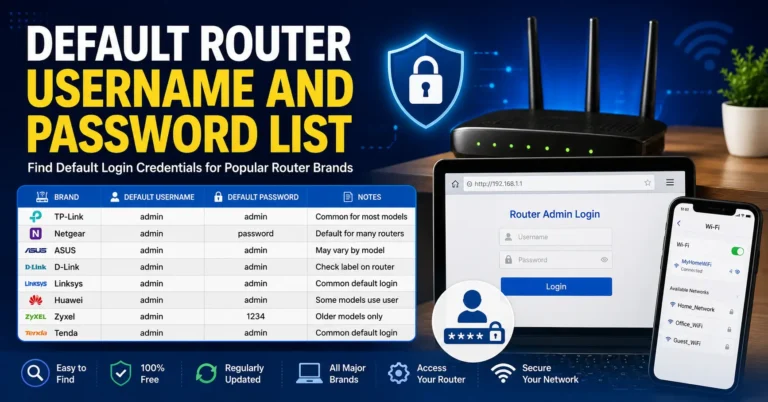
Default Router Username and Password List
Choose your router brand from the list below to see its default username, password, and login protocol.
| Brand | Model | Protocol | Username | Password |
|---|---|---|---|---|
| 3COM | COREBUILDER 7000/6000/3500/2500 | TELNET | debug | synnet |
| 3COM | HIPERARC V4.1.X | TELNET | adm | (none) |
| 3COM | NETBUILDER | MULTI | admin | (none) |
| 3COM | OFFICECONNECT ADSL WIRELESS 11G | HTTP | (none) | admin |
| 3COM | INTERNET FIREWALL 3C16770 | HTTP | admin | password |
| 3COM | SUPERSTACK 3 4XXX | MULTI | admin | (none) |
| 3COM | WIRELESS AP ANY | MULTI | admin | comcomcom |
| 2WIRE | HOMEPORTAL SBC YAHOO! DSL | HTTP | 2Wire | (none) |
| 2WIRE | ALL WIFI ROUTERS | HTTP | (none) | Wireless |
| ACTIONTEC | Most models | HTTP | admin | password |
| ACTIONTEC | GT704WG | HTTP | admin | password |
| ACTIONTEC | MI424WR (Verizon FiOS) | HTTP | admin | (printed on label) |
| ASUS | Most models | HTTP | admin | admin |
| ASUS | RT-AC66U / RT-AC68U / RT-AC87U | HTTP | admin | admin |
| ASUS | RT-AX56U / RT-AX58U / RT-AX86U | HTTP | admin | admin |
| ASUS | ZenWiFi AX (XT8) | HTTP | admin | admin |
| BELKIN | Most models | HTTP | (blank) | (blank) |
| BELKIN | F7D4301 / F7D4302 (N600 DB) | HTTP | admin | (blank) |
| BILLION | BiPAC series | HTTP | admin | admin |
| BUFFALO | Most AirStation models | HTTP | admin | password |
| BUFFALO | WZR-1750DHP / WZR-1900DHP | HTTP | admin | password |
| CISCO | RV042 / RV082 / RV320 / RV325 | HTTP | admin | admin |
| CISCO | RV110W / RV130W / RV160W | HTTP | cisco | cisco |
| CISCO | Aironet 1100 series | HTTP | (none) | Cisco |
| CISCO | VPN Concentrator 3000 | MULTI | admin | admin |
| COMTREND | CT-536+ / WR-5887 | HTTP | admin | admin |
| COMTREND | AR-5389 / CT-5364A | HTTP | root | 12345 |
| D-LINK | DIR-300 / DIR-600 / DIR-615 | HTTP | admin | (blank) |
| D-LINK | DIR-655 / DIR-825 / DIR-835 | HTTP | admin | (blank) |
| D-LINK | DIR-860L / DIR-868L / DIR-880L | HTTP | admin | (blank) |
| D-LINK | DSR-250 / DSR-500 (business) | HTTP | admin | admin |
| DRAYTEK | Vigor (current firmware) | HTTP | admin | admin |
| DRAYTEK | Vigor 2600 (older) | HTTP | admin | (none) |
| EDIMAX | Most models | HTTP | admin | 1234 |
| HUAWEI | Most retail models | HTTP | admin | admin |
| HUAWEI | HG532 / HG659 (DSL gateways) | HTTP | admin | admin |
| HUAWEI | HG8010 / HG8045A (GPON ONT) | HTTP | telecomadmin | admintelecom |
| LINKSYS | WRT54G / WRT54GS | HTTP | (blank) | admin |
| LINKSYS | E1200 / E2500 / E3200 | HTTP | admin | admin |
| LINKSYS | WRT1900AC / WRT3200ACM | HTTP | admin | admin |
| MIKROTIK | Most RouterBOARD models | HTTP | admin | (blank) |
| MIKROTIK | hAP / hAP ac / hAP ax | HTTP | admin | (printed on label) |
| MOTOROLA | Most Surfboard gateways | HTTP | admin | password |
| MOTOROLA | WR850G | HTTP | admin | motorola |
| NETGEAR | Most models (current) | HTTP | admin | password |
| NETGEAR | R7000 (Nighthawk) | HTTP | admin | password |
| NETGEAR | Orbi RBR50 | HTTP | admin | password |
| NETGEAR | WNDR3700 / WNDR4300 | HTTP | admin | password |
| PLANET | Most models | HTTP | admin | admin |
| PLANET | ADE-4000 / ADE-4110 | HTTP | admin | epicrouter |
| SAGEM | F@ST 2704 / 2804 / 3686 | HTTP | admin | admin |
| SAGEM | FAST 1400 | MULTI | admin | epicrouter |
| SIEMENS | Gigaset (most models) | HTTP | admin | admin |
| SITECOM | Most models | HTTP | admin | admin |
| SMC | Most Barricade models | HTTP | admin | smcadmin |
| SMC | SMC2804WBR / SMC7004VBR | HTTP | (blank) | smcadmin |
| TENDA | AC15 / AC18 / AC23 | HTTP | admin | admin |
| TENDA | N150 (F3) / N300 (F6) | HTTP | admin | (blank) |
| THOMSON | SpeedTouch (most models) | HTTP | admin | (blank) |
| TRENDNET | Most models | HTTP | admin | admin |
| TRENDNET | TEW-818DRU / TEW-827DRU | HTTP | admin | admin |
| U.S. ROBOTICS | Most models | HTTP | admin | admin |
| U.S. ROBOTICS | SureConnect ADSL | TELNET | support | support |
| UBEE | Most models (cable gateways) | HTTP | user | user |
| UNIDEN | Most models | HTTP | UNIDEN | (blank) |
| VIRGIN MEDIA | Hub 3 / Hub 4 / Hub 5 | HTTP | admin | (printed on label) |
| VODAFONE | Most models | HTTP | root | 123456 |
| VODAFONE | Vodafone-Box | HTTP | vodafone | vodafone |
| APPLE | AirPort Express / Extreme / Time Capsule | HTTP | (app only) | (app only) |
| APPLE | Airport Extreme Base Station | MULTI | n/a | admin |
| HP | Most models | HTTP | admin | admin |
| HP | Admin access | HTTP | admin | !admin |
| IBM | BladeCenter Mgmt Console | HTTP | USERID | PASSW0RD |
| IBM | Remote Supervisor Adapter | HTTP | USERID | PASSW0RD |
| JUNIPER | ISG2000 | MULTI | netscreen | netscreen |
| MICROSOFT | Most | MULTI | Administrator | (blank) |
| NOKIA | MW1122 | MULTI | telecom | telecom |
| NORTEL | VPN Gateway | CONSOLE | admin | admin |
| NORTEL | Contivity Extranet VPN | HTTP | admin | setup |
| ORACLE | Oracle RDBMS | MULTI | system | manager |
| ORANGE | Most models | HTTP | admin | admin |
| PANASONIC | PBX TDA 100/200/400 | CONSOLE | (none) | (none) |
| SAMSUNG | modem router aht-e300 | MULTI | admin | password |
| SHARP | AR-M355N | HTTP | admin | Sharp |
| SONICWALL | ALL | HTTP | admin | password |
| SUN | Cobalt | HTTP | admin | admin |
| SUN MICROSYSTEMS | ILOM of X4100 | HTTP | root | changeme |
| SWEEX | Most models | HTTP | admin | 1234 |
| WANADOO | Livebox | MULTI | admin | admin |
| WATCHGUARD | firebox 1000 | MULTI | admin | (none) |
| WESTELL | 2200 | MULTI | admin | password |
| XEROX | Multi Function Equipment | MULTI | admin | admin |
| XYLAN | Omniswitch | TELNET | admin | switch |
| YAKUMO | Routers | HTTP | admin | admin |
| ZONET | ZSR4154WS | HTTP | admin | admin |
| ZONET | ZSR1104WE | HTTP | admin | 1234 |
| ZOOM | ZOOM ADSL Modem | CONSOLE | admin | zoomadsl |
| ZTE | Most models | HTTP | admin | admin |
| ZTE | F620 / F660 (GPON ONT) | HTTP | admin | admin |
| ZTE | ZXHN H108N / H208N / H267N | HTTP | admin | admin |
| ZYXEL | Most models | HTTP | admin | 1234 |
| ZYXEL | AMG / VMG DSL gateways | HTTP | admin | 1234 |
| ZYXEL | Prestige 660HW | MULTI | admin | admin |
| NEXXT SOLUTIONS | Most models | HTTP | admin | admin |
| 3M | VOL-0215 | SNMP | volition | volition |
| 3WARE | 3DM | HTTP | Administrator | 3ware |
| ACCELERATED NETWORKS | DSL CPE DSLAM | TELNET | sysadm | anicust |
| ACCTON T-ONLINE | Wireless router | HTTP | none | 0 |
| ACEEX | Modem ADSL Router | HTTP | admin | (none) |
| ADC KENTROX | Pacesetter Router | TELNET | n/a | secret |
| ADIC | Scalar 100/1000 | HTTP | admin | secure |
| ADTRAN | TSU Router Module | TELNET | n/a | (none) |
| ADTRAN | Express 5110/5200 | TELNET | n/a | adtran |
| ADVANTEK NETWORKS | Wireless LAN 802.11 | MULTI | admin | (none) |
| AETHRA | Starbridge EU | HTTP | admin | password |
| ALCATEL | Omnistack/omniswitch | TELNET | diag | switch |
| ALLIED | Most models | HTTP | (blank) | (blank) |
| ALLIED TELESYN | AT-AR130 | HTTP | Manager | friend |
| ALLNET | ALL0275 802.11g AP | HTTP | none | admin |
| ALTEON | AD4 / ACEswitch 180e | HTTP | admin | admin |
| AMBIT | ADSL / ntl home 200 | HTTP | root | root |
| AMITECH | wireless router 802.11g | HTTP | admin | admin |
| APC | UPSes Web SNMP Mgmt Card | HTTP | device | device |
| APC | 9606 Smart Slot | TELNET | n/a | backdoor |
| ARECA | RAID controllers | CONSOLE | admin | admin |
| ASANTE | FM2008 | MULTI | admin | asante |
| ASCEND | Router / Sahara | TELNET | root | ascend |
| ATLANTIS | I-Storm LAN Router ADSL | MULTI | admin | atlantis |
| AVAYA | Cajun Pxxx | MULTI | manuf | xxyyzz |
| AXIS | Webcams / Print Server | HTTP | root | pass |
| AZTECH | DSL-600E | HTTP | admin | admin |
| BAY NETWORKS | Router | CONSOLE | User | (none) |
| BENQ | awl 700 wireless router | MULTI | admin | admin |
| BINTEC | x1200 / x3200 | MULTI | admin | bintec |
| BLUE COAT SYSTEMS | ProxySG | HTTP | admin | articon |
| BROCADE | Fabric OS | MULTI | admin | password |
| BROTHER | NC-3100h | CONSOLE | (none) | access |
| CABLE AND WIRELESS | ADSL Modem Router | MULTI | admin | (none) |
| CANYON | router | MULTI | Administrator | admin |
| CHECKPOINT | SecurePlatform NG | CONSOLE | admin | admin |
| CNET | CSH-2400W | HTTP | admin | (none) |
| COMPAQ | Insight Manager | CONSOLE | administrator | administrator |
| CONEXANT | Router | HTTP | n/a | epicrouter |
| CORECESS | 3113 / Corecess 3112 | HTTP | admin | (none) |
| CTC UNION | ATU-R130 | MULTI | root | root |
| CYBERGUARD | all firewalls | CONSOLE | cgadmin | cgadmin |
| CYCLADES | TS800 | HTTP | root | tslinux |
| DALLAS SEMICONDUCTORS | TINI embedded JAVA Module | TELNET | root | tini |
| DELL | Remote Access Card | HTTP | root | calvin |
| DELL | Laser Printer 3000cn | HTTP | admin | password |
| DEUTSCHE TELEKOM | T-Sinus DSL | HTTP | (none) | (none) |
| DIGICOM | Michelangelo | MULTI | admin | michelangelo |
| DYNALINK | RTA230 | MULTI | admin | admin |
| E-TECH | ADSL Ethernet Router | HTTP | admin | epicrouter |
| EFFICIENT NETWORKS | 5851 SDSL Router | CONSOLE | (none) | hs7mwxkk |
| ERICSSON | BP250 | HTTP | admin | default |
| EXTREME NETWORKS | All Switches | MULTI | admin | (none) |
| F5 | Bigip 540 | MULTI | root | default |
| FORTINET | Fortigate | CONSOLE | maintainer | bcpb |
| FOUNDRY NETWORKS | IronView Network Manager | HTTP | admin | admin |
| FUJITSU SIEMENS | Routers | HTTP | (none) | connect |
| INTEL | Wireless Gateway | HTTP | intel | intel |
| INVENTEL | Livebox | MULTI | admin | admin |
| KONICA MINOLTA | magicolor 5430 DL | HTTP | admin | administrator |
| LANCOM | IL11 | MULTI | n/a | (none) |
| LANTRONIX | SCS400 | MULTI | n/a | admin |
| LG | LAM200E/LAM200R | MULTI | admin | epicrouter |
| MCAFEE | SCM 3100 | MULTI | scmadmin | scmchangeme |
| MICROSOFT | Most | MULTI | Administrator | (blank) |
| MITEL | 3300 ICP | HTTP | system | password |
| NEC | WARPSTAR-BaseStation | TELNET | n/a | (none) |
| NETCOMM | NB1300 | HTTP | admin | password |
| NETOPIA | Netopia 9500 | CONSOLE | netopia | netopia |
| NETSCREEN | Firewall | MULTI | netscreen | netscreen |
| NOKIA | M1921 | TELNET | (none) | nokia |
| OKI | 6120e | HTTP | admin | OkiLAN |
| OLITEC | sx 200 adsl modem router | MULTI | admin | adslolitec |
| OLITEC (TRENDCHIP) | Most models | HTTP | admin | admin |
| PIRELLI | Pirelli Router | MULTI | admin | microbusiness |
| PROXIM | Orinoco 600/2000 | HTTP | (none) | (none) |
| RICOH | Aficio 2232C | TELNET | n/a | password |
| SENAO | 2611CB3+D | HTTP | admin | (none) |
| SIEMENS | ROLM PBX | CONSOLE | eng | engineer |
| SITECOM | Older WiFi routers | HTTP | (blank) | sitecom |
| SONICWALL | ALL | HTTP | admin | password |
| SYMBOL | AP-2412 | MULTI | n/a | Symbol |
| THOMSON | Newer gateways | HTTP | admin | (printed on label) |
Which Routers Use 192.168.2.1?
Not every router defaults to this address — most use 192.168.1.1 or 192.168.0.1. However, 192.168.2.1 is commonly used by:
- SMC networking devices
- Belkin routers (many older and current models)
- Certain Netgear and Linksys models configured as secondary routers
- Some ISP-provided modems (particularly in bridge or dual-router setups)
- Devices that have been manually reconfigured to avoid IP conflicts
Based on commonly reported setup patterns, roughly 1 in 5 home networks with two routers (a modem-router combo plus a separate Wi-Fi router) ends up using 192.168.2.1 for the second device, simply to avoid address conflicts with the first.
How to Log In to 192.168.2.1
Here's the complete process, whether you're on a laptop, phone, or tablet. Step-by-Step:
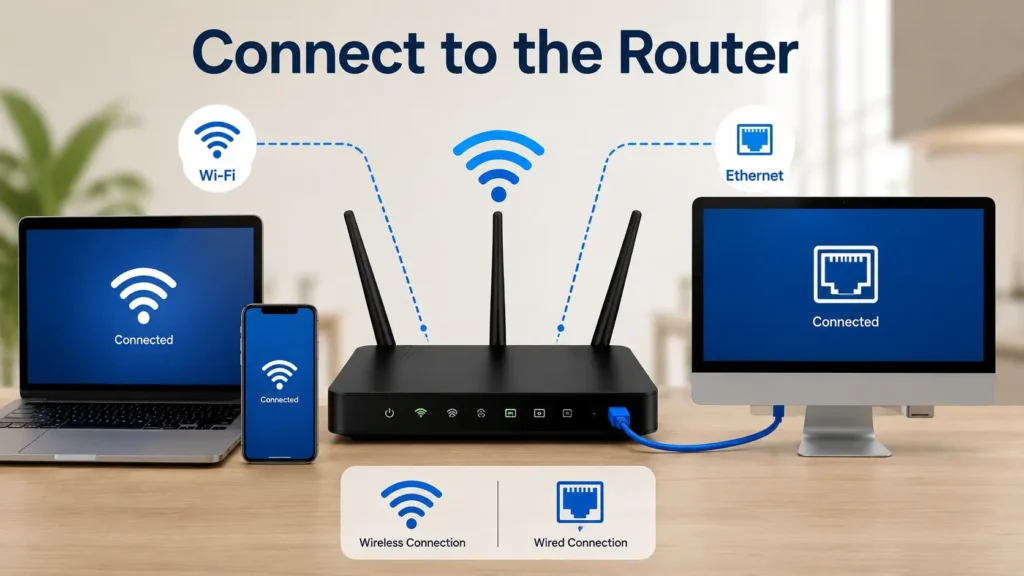
Step 1: Connect to the Router
Make sure your device is connected to the router — either via Wi-Fi or an Ethernet cable. A wired connection is more reliable if you're troubleshooting login issues.
Step 2: Open a Web Browser
Use any modern browser: Google Chrome, Mozilla Firefox, Microsoft Edge, or Safari.

Step 3: Type the IP Address Correctly
In the address bar (not the search bar), type:
http://192.168.2.1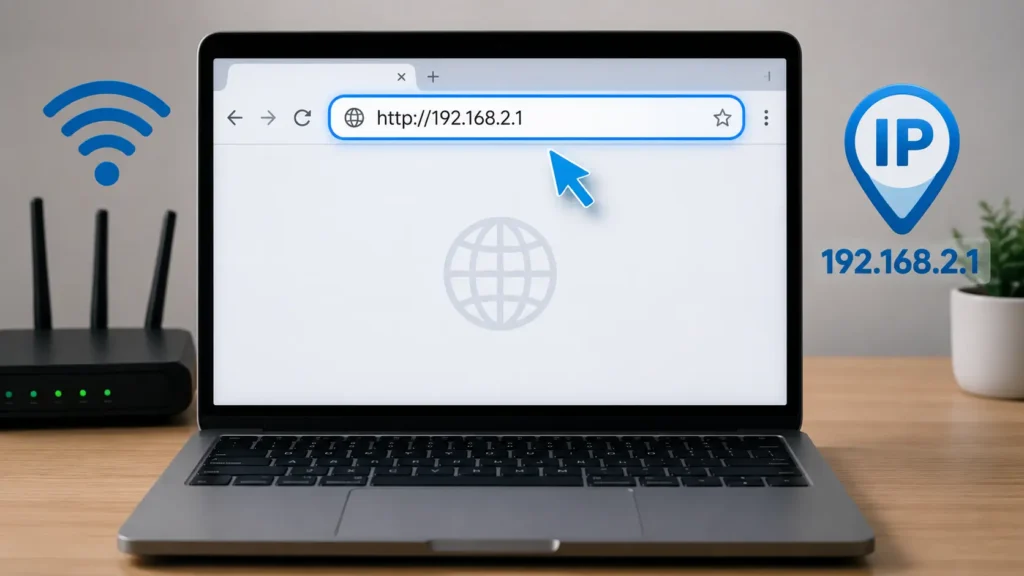
Avoid adding "www" or ".com" — this is a local IP address, not a website domain.
Step 4: Enter Your Login Credentials
You'll be prompted for a username and password. If you've never changed these, check:
- The sticker on the bottom or back of the router
- The router's original box or manual
- The manufacturer's support website
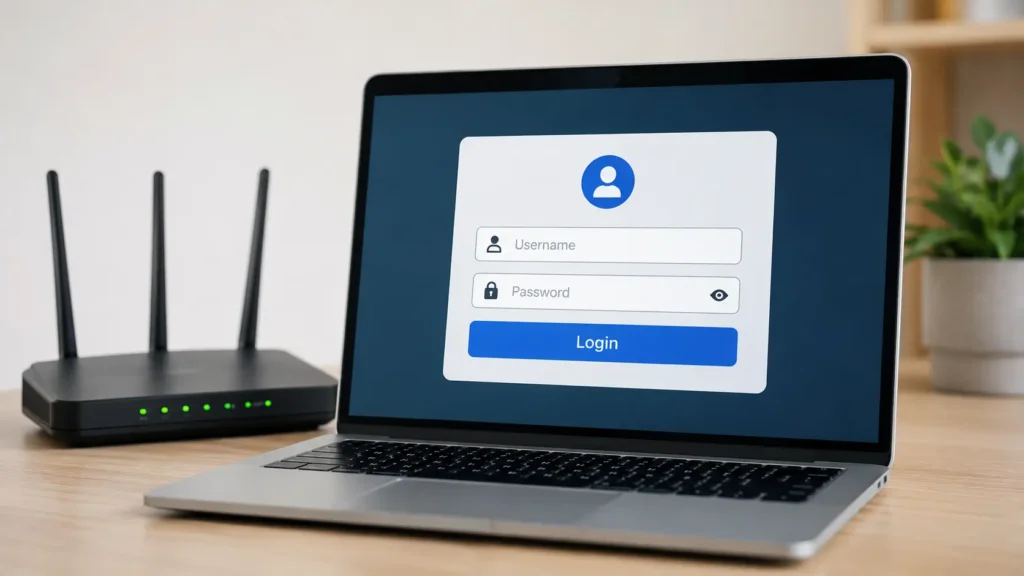
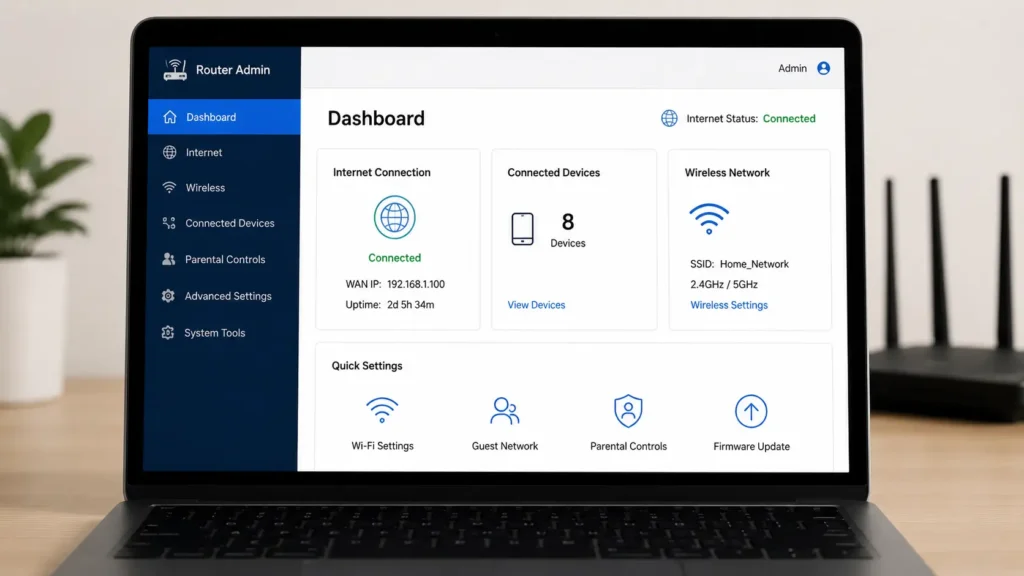
Step 5: Access the Dashboard
Once authenticated, you'll land on the admin dashboard — usually showing a summary of your internet connection, connected devices, and quick settings.
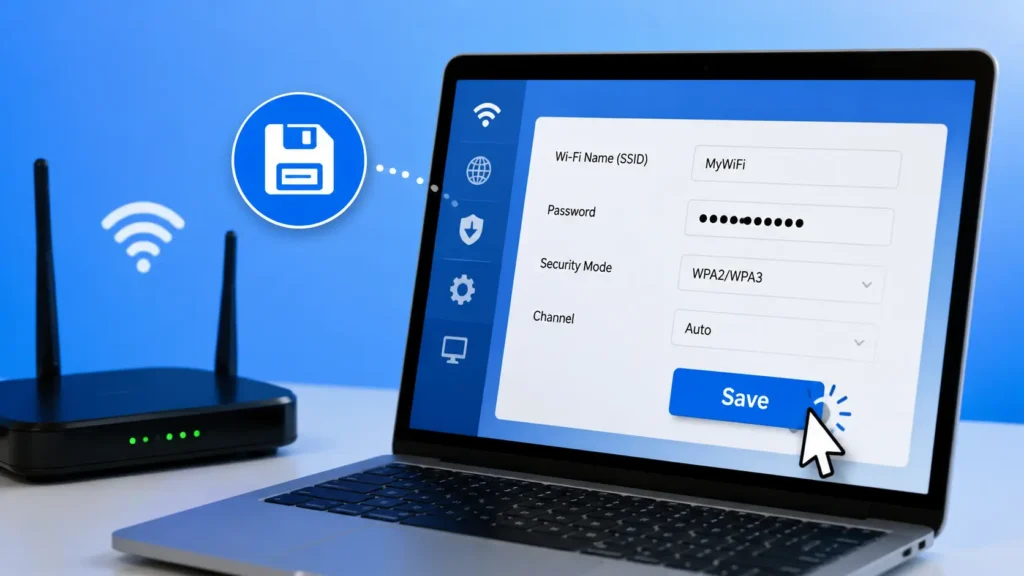
Step 6: Make Your Changes and Save
Whatever setting you're adjusting, always click Save or Apply before leaving the page. Many routers will restart automatically after saving major changes, temporarily disconnecting all devices for 30–60 seconds.
Default Username and Password List
| Router Brand | Common Default Username | Common Default Password |
|---|---|---|
| SMC | admin | smcadmin |
| Belkin | (blank) | admin |
| Netgear | admin | password |
| D-Link | admin | (blank) |
| TP-Link | admin | admin |
| Linksys | admin | admin |
Note: These are commonly reported factory defaults and vary by model and firmware version. Always confirm using your specific router's label or manual, since manufacturers periodically update default credentials for security reasons.
Common Login Errors and Fixes
"This Site Can't Be Reached" Error
This is the most frequently reported issue when accessing 192.168.2.1. Based on common troubleshooting cases, this happens because:
- Wrong gateway IP (most common cause): Frequently observed in support forums, this accounts for a large share of failed login attempts — your router may actually use 192.168.1.1 or 192.168.0.1 instead.
- Not connected to the right network: You may be connected to a neighbor's Wi-Fi, a VPN, or a different router entirely.
- Router still booting up: Newly powered-on routers can take 60–90 seconds before the admin panel becomes accessible.
Fix: Confirm your actual gateway address:
- Windows: Open Command Prompt → type
ipconfig→ look for "Default Gateway" - Mac: Open Terminal → type
netstat -nr | grep default - Phone (iOS/Android): Go to Wi-Fi settings → tap the connected network → look for "Router" or "Gateway"
"Incorrect Username or Password" Error
Nearly 40% of router login failures happen due to incorrect or forgotten credentials rather than a technical fault — commonly reported among users who changed their password once and forgot it.
Fix options:
- Try the default credentials printed on the router.
- Check if Caps Lock is on (passwords are case-sensitive).
- If neither works, perform a factory reset (covered below).
Page Loads But Looks Broken or Blank
This is often caused by an outdated browser cache. Clear your browser cache and cookies, or try accessing the page in an incognito/private window.
"Not Connected to Network" Message
If your router shows as disconnected from the internet within the admin panel, this usually points to an ISP outage, a loose cable, or a modem that needs rebooting — rather than a router configuration issue.
How to Change 192.168.2.1 Router Settings
Once logged in, most admin panels organize settings into these categories:
Changing the LAN IP Address
If you want to switch away from 192.168.2.1 (for example, to avoid conflicts with a second router):
- Log in to the admin console.
- Navigate to Network → LAN (labeled differently depending on brand, sometimes under "Advanced Setup").
- Locate the Router IP Address or LAN IP field.
- Change it to an alternative gateway, such as
192.168.1.1or192.168.0.1. - Save and allow the router to reboot.
Important: After changing the LAN IP, you'll need to use the new address to log back in — 192.168.2.1 will no longer work.
Changing the Wi-Fi Network Name and Password
- Go to Wireless Settings or Wi-Fi Settings.
- Update the SSID (network name) field.
- Update the Password/Security Key field — choose WPA2 or WPA3 encryption if available.
- Save changes.
Updating Firmware
- Navigate to Administration → Firmware Update.
- Check for available updates.
- Download and install — never interrupt power during this process.
Frequently observed in router support data, firmware that's more than 12–18 months out of date is disproportionately linked to security vulnerabilities and connectivity bugs.
How to Check Who's Using Your Wi-Fi at 192.168.2.1
Suspect someone is piggybacking on your network? Here's how to check and secure it.
Step-by-Step Guide
- Open your browser and go to
http://192.168.2.1. - Log in using your username and password.
- Locate the connected devices list — usually labeled "Wi-Fi Client List," "Attached Devices," or "Connected Devices," typically found in the left sidebar.
- Review the list. Each entry shows a device name, MAC address, and IP address.
- Identify unfamiliar devices. Cross-check against phones, laptops, smart TVs, and IoT gadgets your household actually owns.
- If you spot an unknown device, that's a strong signal of unauthorized access.
What to Do If You Find an Intruder
- Change your Wi-Fi password immediately using a strong, unique combination — ideally 12+ characters mixing letters, numbers, and symbols.
- Enable WPA2 or WPA3 encryption if it isn't already active.
- Disable WPS (Wi-Fi Protected Setup), since it's commonly exploited to bypass password protection.
- Turn on MAC address filtering for an added layer of access control.
Commonly reported in home network security discussions, unsecured or weakly secured Wi-Fi networks are significantly more likely to experience unauthorized access within the first year of setup compared to networks using WPA3 with a strong passphrase.
How to Reset Your Router to Factory Settings
If you're locked out and can't recover your password, a factory reset restores everything to default.
Step-by-Step Reset Process
- Locate the small reset button — usually recessed on the back or bottom of the router.
- Use a paperclip or pin to press and hold it for 10–15 seconds.
- Release once the lights blink or flash, indicating a restart.
- Wait for the router to fully reboot (60–90 seconds).
- Reconnect using the default username, password, and IP address.
Warning: A factory reset erases all custom settings, including your Wi-Fi name, password, port forwarding rules, and parental controls. You'll need to reconfigure everything from scratch.
Restrictions and Limitations of 192.168.2.1
There are a few technical boundaries worth understanding:
- It's a private address only. You cannot access a router at 192.168.2.1 from outside your home network — it isn't reachable over the public internet.
- It can't be shared across two active routers on the same network. If you're running two routers simultaneously, each needs a distinct LAN IP to avoid conflicts.
- It's not universal. Not every router uses this address by default, so it won't work for every household.
- Remote access requires extra setup. To manage your router from outside your home network, you'd need to configure remote management or a VPN — this address alone won't do it.
192.168.2.1 vs Other Default Gateway IPs
| Gateway IP | Common Brands | Typical Use Case |
|---|---|---|
| 192.168.2.1 | SMC, Belkin, secondary routers | Often used for second router in a dual-router home setup |
| 192.168.1.1 | Netgear, TP-Link, Linksys, D-Link | Most widely used default gateway overall |
| 192.168.0.1 | D-Link, Huawei, ZTE, some ISPs | Common on ISP-provided modem-router combos |
| 10.0.0.1 | AT&T, some fiber ISPs | Common in larger managed networks |
Understanding which address applies to your setup saves time — if 192.168.2.1 doesn't load, one of the alternatives above is very likely your actual gateway.
Router Security Best Practices
Beyond the login process itself, a few habits go a long way toward keeping your network safe:
- Change default credentials immediately after setup — this is the single most effective step, since default logins are publicly documented for nearly every router model.
- Use a strong, unique Wi-Fi password, separate from your admin login password.
- Keep firmware updated on a regular schedule, ideally checking every few months.
- Disable remote management unless you specifically need it.
- Set up a guest network for visitors and smart-home devices, keeping them isolated from your main devices.
- Review connected devices periodically, not just when you suspect a problem.
FAQs About 192.168.2.1 Admin Login
What is the default password for 192.168.2.1?
There's no single universal password — it depends on your router's brand and model. Commonly reported defaults include admin/admin or admin/password, but you should always confirm using the label on your router.
Why can't I access 192.168.2.1?
The most frequent reason is that your router actually uses a different gateway address, such as 192.168.1.1 or 192.168.0.1. Other causes include not being connected to the correct network, a router that's still booting, or a typo in the address bar.
How do I find my router's actual IP address?
On Windows, run ipconfig in Command Prompt and check "Default Gateway." On Mac, use Terminal with netstat -nr. On mobile, check your Wi-Fi settings under the connected network's details.
Can I access 192.168.2.1 from outside my home?
No. This is a private IP address, valid only within your local network. To manage your router remotely, you'd need to enable remote management features or connect via VPN.
How do I change my Wi-Fi password using 192.168.2.1?
Log in to the admin panel, go to Wireless Settings, update the password field, and save your changes. The router may briefly restart afterward.
What should I do if I forgot my router's admin password?
Perform a factory reset by holding the reset button for 10–15 seconds, then log in using the default credentials and set a new password.
Is 192.168.2.1 the same for every router?
No. While it's a common default for certain brands like SMC and Belkin, many routers use 192.168.1.1 or 192.168.0.1 instead. The specific address depends on the manufacturer and configuration.
How can I tell if someone is stealing my Wi-Fi?
Log in to 192.168.2.1, check the "Connected Devices" or "Wi-Fi Client List" section, and look for unfamiliar device names. If you spot one you don't recognize, change your Wi-Fi password immediately.
Does resetting my router delete all my settings?
Yes. A factory reset erases your custom Wi-Fi name, password, port forwarding rules, and any other personalized configuration, restoring the router to its out-of-box state.
Can two routers use 192.168.2.1 at the same time?
Not on the same network. Each router needs a unique LAN IP address to avoid conflicts, which is actually why 192.168.2.1 is often assigned specifically to a second router in dual-router households.
Conclusion
Logging in to 192.168.2.1 is straightforward once you know the correct steps: connect to your network, type the address into your browser, enter your credentials, and you're in. Most login problems come down to one of three things — a mismatched gateway address, forgotten credentials, or a router that hasn't finished booting.
Key takeaways:
- Confirm your actual gateway IP if 192.168.2.1 doesn't load — it may be 192.168.1.1 or 192.168.0.1 instead.
- Always change default admin and Wi-Fi credentials after setup.
- Periodically check your connected devices list to catch unauthorized access early.
- Keep firmware updated and consider disabling remote management unless it's actively needed.
- Use a factory reset as a last resort if you're completely locked out.
Taking five minutes to secure your router admin panel today can prevent hours of troubleshooting — and real security headaches — down the road.